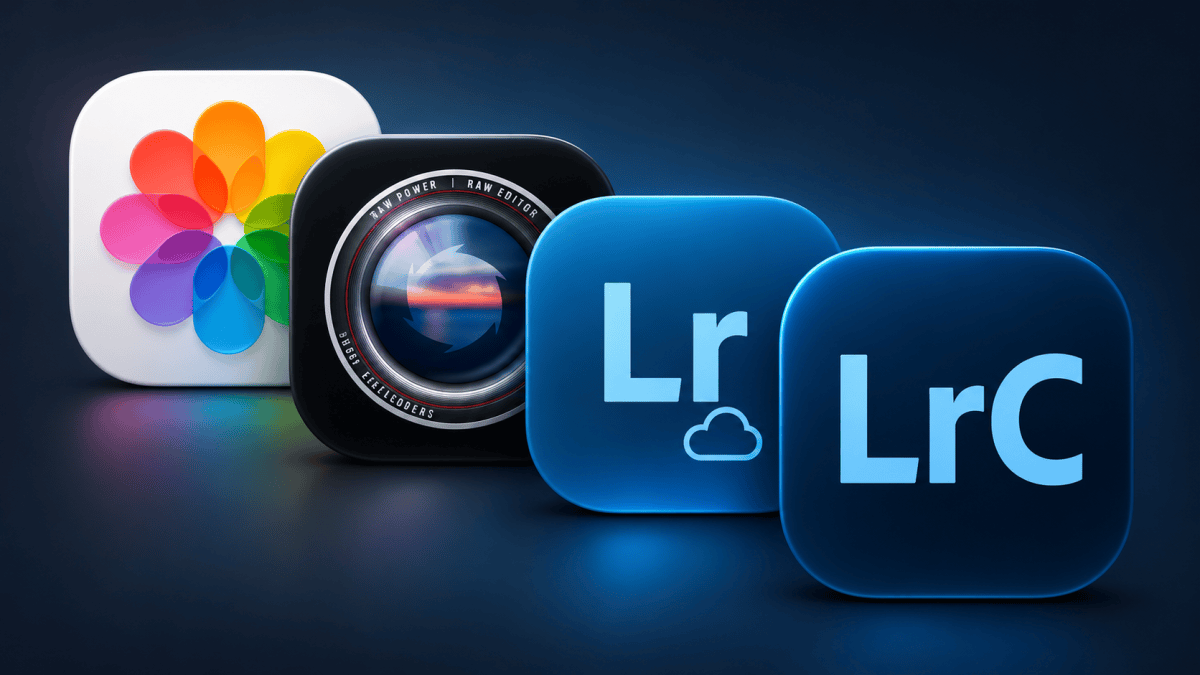
When Apple Photos was enough
For much of the 2010s, most of my photos were taken on a mobile phone. Apple Photos suited me quite well. I could make a few basic edits, browse the results on my Mac, iPhone or iPad, and leave the library management to Apple. It just worked.
I’d used Apple’s Aperture in the past, followed by iPhoto and then Photos. But as I started spending more time with traditional cameras, particularly DSLRs, I wanted more than convenient browsing and basic adjustments.
I was working with RAW files and beginning to care much more about how they were processed. Lens corrections were one of the things I found lacking in Apple Photos at the time. I wanted better tools for masking, correction and rescuing images that needed a little work.
Apple Photos hadn’t suddenly become a bad application. My photography had outgrown what I was asking it to do.
A detour through RAW Power
Before I moved to Lightroom, I tried RAW Power from Gentlemen Coders. I liked the idea of staying with Apple Photos while getting more capable RAW editing from a separate app. In many respects it worked well, and I liked not having to abandon my existing library to do more serious processing.
There was a catch with editing extensions in Photos, though. As I remember it, the first extension in a chain could work on the original RAW file, but saving its changes produced a rendered JPEG for any subsequent extension. You could stack edits, but not quite in the way I wanted when working with RAW photos.
The bigger frustration was lens distortion correction. With the lenses I was using, I found myself needing to photograph grids for each lens and calibrate the correction rather than simply having a suitable profile applied. It was a faff. I liked RAW Power, and I particularly liked how it fitted into Apple Photos, but that particular hurdle meant it wasn’t quite there for me. So my next stop was Lightroom in the cloud.
I wandered lonely into a cloud
Sorry about the Wordsworth reference… but I did rather dive into Adobe’s cloud-based Lightroom. I took a plan with 1 TB of storage and uploaded my entire Apple Photos library.
The improvement in RAW processing was immediately worthwhile. I could do much more to my photos than I had been able to do before. And there were heaps of lens and camera corrections ready to use.
Organising them was another matter.
Cloud Lightroom felt quite flat to me at the time. Apple Photos also hid much of the underlying file structure, of course, but its Year and Month views, thumbnails and prominent location information made browsing easier. I didn’t feel quite so constrained by it. Apple software useability really is good.
When you have something like 60,000 photos, finding the image you want isn’t a quick job. It can become quite irritating.
I also found myself hunting for Lightroom advice and tutorials, only to discover that the person demonstrating the technique was generally using Lightroom Classic. The cloud version was still comparatively immature when I was using it, and I wanted access to plug-ins and a broader selection of tools. I recognise that cloud Lightroom has moved on since then, but at the time it wasn’t quite the environment I wanted and it probably still isn’t.
When you have something like 60,000 photos, finding the image you want isn’t a quick job. It can become quite irritating.
Classic wasn’t nearly as daunting as I expected
I’d initially avoided Lightroom Classic because it looked complicated. I wasn’t convinced I had either the time or the inclination to learn how to use it properly.
Eventually the advantages outweighed the concern. I wanted to keep my original photos on my NAS, take control of their organisation and make use of the plug-ins that worked with Classic.
I remember the move itself being fairly smooth, although I don’t remember whether I re-imported photos from Apple Photos or synchronised them from Adobe’s cloud. However, the transition wasn’t too hard.
Initially, everything ended up in a Lightroom Legacy folder, broadly grouped by image format. From there I began building a more useful structure: Trips and Travel, Outings, Events, and General. Most of the photos probably fall into General.
I maintain a folder hierarchy for the original files and a largely matching structure of collection sets and collections in Lightroom Classic. They’re not identical. The collections are sometimes more deeply organised than the physical folders, and that’s deliberate.
The two structures can serve different purposes. I can reorganise where files live, making the moves inside Lightroom Classic so its catalogue stays in step, without disrupting the way I organise and browse the images in collections.
I am still working through the Legacy material, moving groups of photos into the new structure as I go. By my estimate, I’m about two-thirds of the way through. Getting into Lightroom Classic was reasonably straightforward; getting tens of thousands of photos organised exactly as I want them is a much longer undertaking.
One master library, several ways to use it
Today, Lightroom Classic is the centre of my photography workflow. The originals on the NAS are my golden source, and one Classic catalogue holds the organisation and edits.
I still use Adobe’s cloud, but rather differently from the way I started. Lightroom Classic synchronises Smart Previews rather than full-resolution originals. I can work on photos from an iPad if I have a collection awaiting processing, and the edits can find their way back to Classic. Once that work is complete, I generally turn off synchronisation for the collection, although the synced photos remain in the cloud.
I also use Apple Photos again, this time as a place for the finished photos. A plug-in called LRPhotos lets me publish processed images into albums that broadly follow my Lightroom Classic collection structure. As I do that, I can gradually clean up older duplicate copies in Apple Photos. The original files on the NAS remain untouched.
I’ve covered the mechanics in more detail in My Digital Photo Workflow. The broad principle is: Lightroom Classic manages the originals and processing, while Apple Photos provides a convenient way to enjoy the finished results.
The thing that keeps Lightroom Classic in the running for me isn’t just the RAW editor, though. It’s the asset management.
What I still wish worked better
There are plenty of occasions when I have a bit of time and would happily pick up my iPad to edit some photos. I’ve even moved presets from Classic into Lightroom on the Mac so they become available on my mobile devices.
But the handover isn’t as clean as I’d like. Some AI features and updates don’t behave quite the same way between applications, and I still need to return to Classic on the Mac for my plug-ins.
Those include tagging tools, LRPhotos, and a few I’ve developed myself for Fujifilm photos. My Fujifilm tools pull camera MakerNotes from EXIF metadata into custom Lightroom Classic fields, enable Adobe’s Raw Details processing, and can associate Lightroom presets with Fujifilm film simulations. Those are useful parts of my processing, and they’re not something I can simply reproduce by picking up the iPad.
I’d also like native integration with Apple Photos, ideally with synchronisation rather than a one-way publishing process. And I’d happily consider paying for 1 TB of Adobe cloud storage again if Classic could upload full-resolution originals rather than only Smart Previews. If the collection hierarchy travelled cleanly between Classic and cloud Lightroom, I’d have much more reason to leave collections synchronising.
What I’d really like is the freedom to use Lightroom on the Mac, iPad or iPhone without having to think about which version I’m using or what won’t carry across.
Was the long way round worth it?
I’m happy with Lightroom Classic. In hindsight, I should probably have gone straight there. The complexity that worried me turned out to be manageable, and having more control over the archive has been worth the effort.
The curious thing is that I’ve ended up using all three environments in some form: Lightroom Classic for the master library and serious processing, Adobe’s cloud for mobile access and occasional edits, and Apple Photos for browsing and sharing finished photos.
There’s also the cost. Lightroom Classic comes with an Adobe subscription, not a licence I can simply buy once and keep. It’s an ongoing expense, and the longer I use it the more that adds up. I can justify paying for useful software, but the subscription model does make me think about whether it’s still worth it.
The thing that keeps Lightroom Classic in the running for me isn’t just the RAW editor, though. It’s the asset management. With around 60,000 photos on my NAS, one catalogue and collections arranged the way I want, being able to find, organise and move things without breaking the library is the real value. That would be the hardest part to replace.
That doesn’t mean I’m committed to Adobe forever. If another product comes along that handles the library as well, does the editing I need and perhaps joins up my Mac, iPad and iPhone more neatly, I’d seriously consider switching. For now, Lightroom Classic earns its place, but I’m keeping an open mind.


One thought on “The Lightrooms — The Long Way Round to Classic”