My Digital Photo Workflow

I’ve been wanting to write this article about my photography workflow for a while, but with it being constantly refined and me struggling to get my thoughts down, it’s taken a while. So here is exactly how I process my digital photo assets with Canon gear, Lightroom Classic, and Apple Photos. It’s the workflow I’ve refined over years of shooting, and it’s designed to be fast, predictable, and family-friendly at the sharing end. Nothing here is theoretical—this is what I actually do every week.

My goals and ground rules

I keep one catalogue and one source of truth. Lightroom Classic (LrC) is my asset manager and editing environment, and my Synology NAS holds the masters. Apple Photos (Photos) is purely for distribution—what the family sees on their phones, iPads, and Apple TV. It contains a subset of the photos in LrC and only those photos that are good enough to share – it is effectively my published work. I don’t physically delete rejects; I remove them from working Collections but keep the files on disk. Every photo I keep in Lightroom carries a policy keyword—Externally Processed—so I can see at a glance what’s been brought from LrC to Photos.

Where everything lives

All originals live on the NAS: Canon RAWs, iPhone photos, videos, exports—everything. I work on a MacBook Air and use Synology Drive with pinned folders so current projects are available offline. The catalogue and previews are on the laptop’s SSD for speed; the images themselves sit in project folders on the NAS under top-level categories: Trips & Travel, Events, Outings, and General.

How new photos arrive (and how I avoid the loops)

Nearly all roads lead through the iPhone because it keeps everything simple when I’m out and about. I’ve set Lightroom Mobile on the phone to auto-add from the Camera Roll, i.e. any new images that are in Apple Photos. Any time I transfer Canon RAWs to the iPhone, they land in Photos first and Lightroom Mobile immediately picks them up and pushes them to Adobe Cloud. I’ve got 20 GB of capacity there—not heaps, but enough for short bursts while I process on the Mac.

For the Canon transfer itself I default to Wi-Fi via the Canon Camera Connect app, configured to pull RAW-only. If I’m shifting a big batch, I’ll use a cable or a card reader and import RAWs straight into Photos; same destination in the end. I’ve also used the CC&C app when it’s more convenient; again, it deposits RAWs in Photos and the chain takes care of the rest.

Any photos that I have taken on my iPhone will also be picked up by LrC on the iPhone, so the flow is very similar to the Canon camera route. I tend to shoot mostly in RAW (DNG) on the iPhone.

Back on the Mac, Lightroom Classic syncs and downloads those images into my “Lightroom Sync” intake location as dated subfolders. From there I move the folders to their proper place on the NAS within the Folders panel (never in Finder). During this window I have double cloud safety—iCloud and Adobe Cloud—until I clear the queue.

It’s worth pausing here and just going back to the final point above. By pushing images into Photos to begin with (in addition to photos taken on the iPhone), then end up in iCloud Photos almost instantly and that is the first backup. When I then pull them into Lightroom on the iPhone and it uploads those imported photos into Adobe Cloud, that is my second backup. They remain until I have uploaded them, via LrC, to my NAS.

There’s one booby trap you only need to step on once to remember forever: after I publish JPEGs to Apple Photos, those same JPEGs try to sneak back into Lightroom Mobile on the iPhone because of auto-add. To avoid this “JPEG backflow,” I either quit LrC and quickly delete those just-published JPEGs in Lightroom Mobile before reopening LrC, or I toggle auto-add off during publishing and turn it back on afterwards. That keeps the cloud clean and my Adobe quota intact. The important thing is that only RAWs make it from Lightroom on the phone to LrC on the Mac.

Filing and naming so I can find anything

I like to start from truly bare RAWs—no import preset, no auto looks. New downloads hit a “New Photos” intake area, then I drag-move them to the correct category on the NAS (Trips & Travel, Events, Outings, or General). I immediately rename the folder to YYYY-MM-DD – Description, for example, “2025-11-08 – Fireworks in Tring”, under Outings/2025. I then create a Collection with the exact same name and drag the images into it. That mirrored structure means the Folders panel and Collections panel always agree, and I can drive everything from Collections without wondering where anything lives on disk. There are collection sets that closely mirror the original NAS folders to keep it consistent.

Processing: how I get from raw capture to finished keepers

I open the new Collection, select all, and apply my look preset that includes Adobe’s Adaptive Colour. That gives me a consistent baseline without crushing individual images into the same mould. Then I step through one by one in the Develop module. I crop first—composition decisions make all other edits faster—then I tweak exposure, contrast, and white balance. During this stage a rate the images. I have Auto Advance set up in LrC so star ratings move me forward automatically.

My rating rules are simple and unambiguous:

  • 4★ means “share this” (it will go to Apple Photos).
  • 3★ is “technically fine but not a hero” (alternates, context).
  • 2★ is a technical fail—motion blur, missed focus, etc.

At the end of the pass I filter to 2★ inside the Collection and remove those from the Collection only. I never delete from disk; I might still want the frames for reference or a future composite.

Metadata and tagging without wasting time

I set copyright and author metadata in-camera, so it’s already embedded in the RAWs when they hit Lightroom. I prefer to finish processing first and then tidy metadata so I don’t waste energy on 2★ images.

Three Smart Collections drive the cleanup:

  1. A library-wide view of photos that do not contain the keyword “Externally Processed”—my policy guardrail.
  2. All 3★/4★ photos with no GPS—keepers must have a place.
  3. All 3★/4★ photos that haven’t been processed by Anyvision (John R. Ellis’s plug-in), which I use to auto-generate descriptive keywords. It also adds the keyword Anyvision so I can see what’s been tagged.

For GPS I’ll copy coordinates from adjacent frames (sync only the GPS field) or use the Map module and drag the images onto the correct pin. Address Lookup is handy to fill City/State/Country. On export I remove location for anything sensitive. I have geotagging in my cameras, or at least using the Camera Connect app to set the location on the camera, and therefore most images do not need any adjustment to their coordinates as they are already tagged.

Anyvision’s Classify feature adds content keywords in one go. I tend to leave Anyvision to it, and don’t need to change anything in the keywords once it’s completed its processing. One shortcut, particularly useful for older images that I may be working on, is that Anyvision can attempt to identify where an image was taken. That is why in some cases I will run it before reviewing those images that are missing location information. When those three Smart Collections are empty for the set, I’m done.

When mobile editing makes sense

If the images first appear on the iPhone or iPad, I’ll often do quick edits there—crop plus a preset—so I can share a version to Messages or socials without waiting to get back to the desk. I copied my LrC presets to Lightroom (desktop)on the Mac and they sync to Mobile, so looks match. When I open LrC, the edits arrive with the images and I resume the usual process. No forks, no sidecars, no drama.

Publishing to Apple Photos without tears

After a fair bit of searching and zero joy trying to connect LrC directly to Apple Photos, I landed on a plug-in called LRPhotos. It’s brilliant. I set up LRPhotos Publish Services, one for each of my top-level Collection sets—Events, General, Outings, and Trips & Travel—so albums inside Photos track collections inside Lightroom.

When I have finished processing a LrC collection and metadata is tidy, I filter the Collection to 4★, right-click the appropriate LRPhotos group, and create a Published Collection with those selected photos. I give it exactly the same name as the Lightroom Collection. Before I publish, I go into Apple Photos and delete the original RAWs for that set so I don’t end up with mixed RAW/JPEG duplicates (although sometimes I may do it afterwards). Back in LrC I add a green colour label to the photos being published—just before I publish—so the label change doesn’t immediately mark them for republishing. Green means “this photo is in Apple Photos.” Then I hit Publish. LRPhotos creates a matching album and uploads the JPEGs using my standard settings: sRGB, quality ~90, no resize, Screen/Standard output sharpening. Titles, captions, and keywords go with them; I almost always include GPS location data.

Once the album lands in Photos, I select the new images and move them to the Shared Library so the whole family sees them. Then I run the JPEG backflow guard on the phone (delete those new JPEGs from Lightroom Mobile before reopening LrC, or toggle auto-add off during publishing) and the loop is clean.

Updating albums later without breaking things

Edits happen. When I change an image that’s already been published—or when I remove or add something in a Published Collection—Lightroom shows it under “Modified Photos to Re-Publish.” I hit Publish, and LRPhotos does something clever: it tags the previous Apple Photos items with keywords indicating out-of-date or deleted. That produces duplicates at first, but it gives me a safe broom. LRPhotos cannot delete anything from Apple Photos anyway.

I keep a Smart Album in Apple Photos that catches anything with those LRPhotos keywords. After a republish I open that Smart Album and delete everything inside it. That clears the stale versions and leaves just the fresh ones in the target album. If I want to share to the broader family I move the imported photos to the Apple Photos shared library. It’s not true “replace in place,” but in practice it achieves the same outcome with very little effort and a lot of transparency.

Using Adobe Cloud on my terms

I’m tight with Adobe Cloud: full-res arrives there when I import via the phone, and I clear it as soon as the batch is safely on the NAS and in the catalogue. For ongoing access I rely on Smart Previews, which don’t count against the 20GB storage quota. I regularly sync 3★ and 4★ keepers to the cloud as Smart Previews so I can browse and do light edits on mobile. For older shoots I’ll batch up Collections by event and sync those too. In LrC I mark Collections yellow while they’re pending processing, flip them green when done, and then turn off sync for the Collection. The Smart Previews stay available even after the switch is off. If a synced Collection contains 2★ rejects, I remove those from the cloud so only quality (and any deliberately pending items) remains visible on the phone and iPad.

Why this works for me

This system gives me the freedom to shoot on Canon, hand off quickly through the phone when needed, and still keep an iron-clad archive with predictable naming and structure. Lightroom Classic stays the brain; the NAS stays the heart. Apple Photos is simply the face the family sees. With LRPhotos, versioning is safe and obvious. With the Externally Processed keyword and a few laser-focused Smart Collections, nothing falls through the cracks. And because I never really delete, I can revisit decisions without digging through bins.

It isn’t flashy, but it’s resilient. I can step away for a month and pick it up again with zero relearning. That’s why this workflow works for me: it gets out of the way, even when life doesn’t.
The Unplanned Adventure

After some discussion in the family, it was decided that I should take some time off work so that we could spend some time in the UK. For at least the next ten months I will be away from Australia, and seeing how life is back in Blighty. I don’t intent to write much, if anything, about what we are doing here and how I am finding it, but in preparation for our big trip I have been working through a few tech challenges, and I thought I might share them on here.

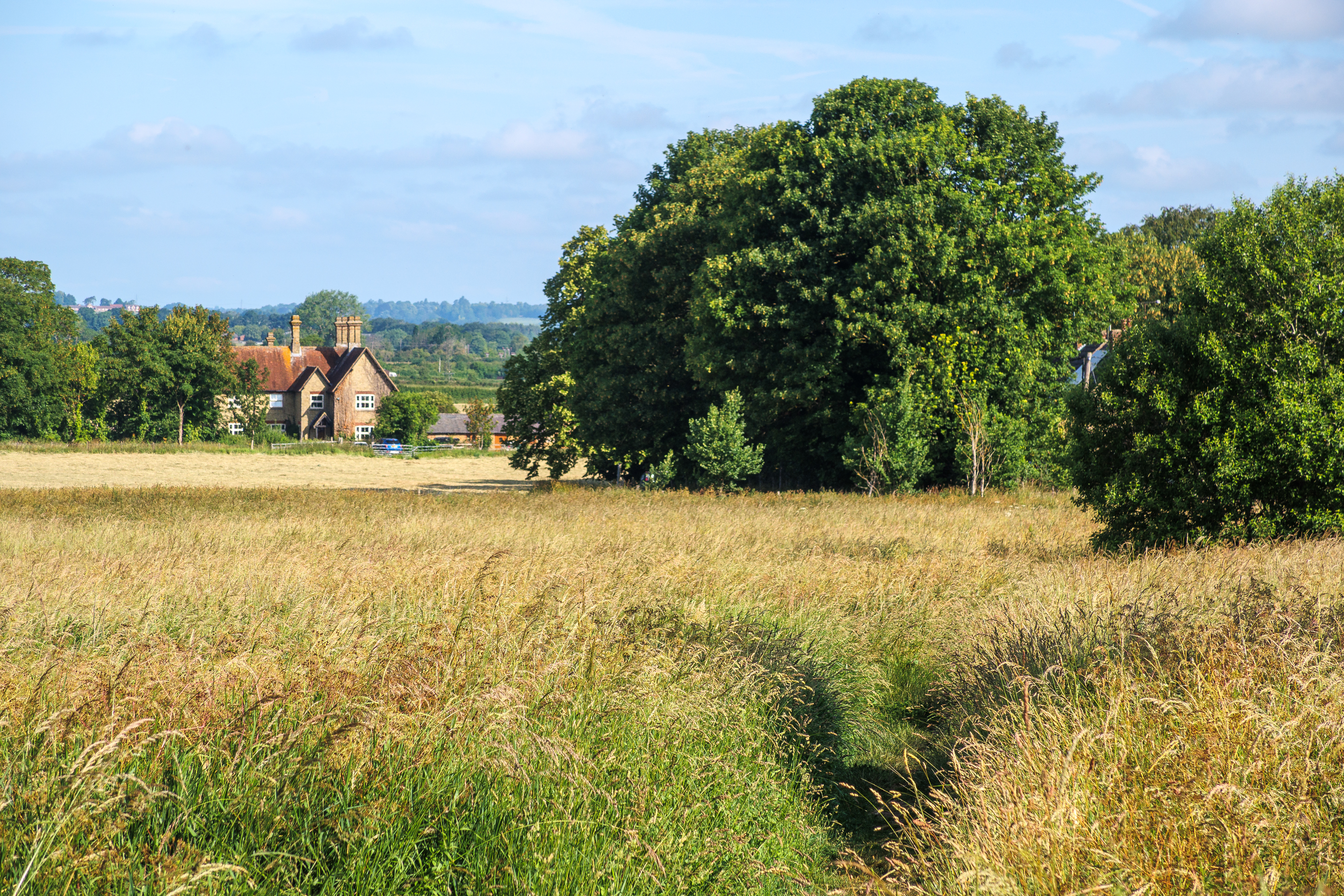
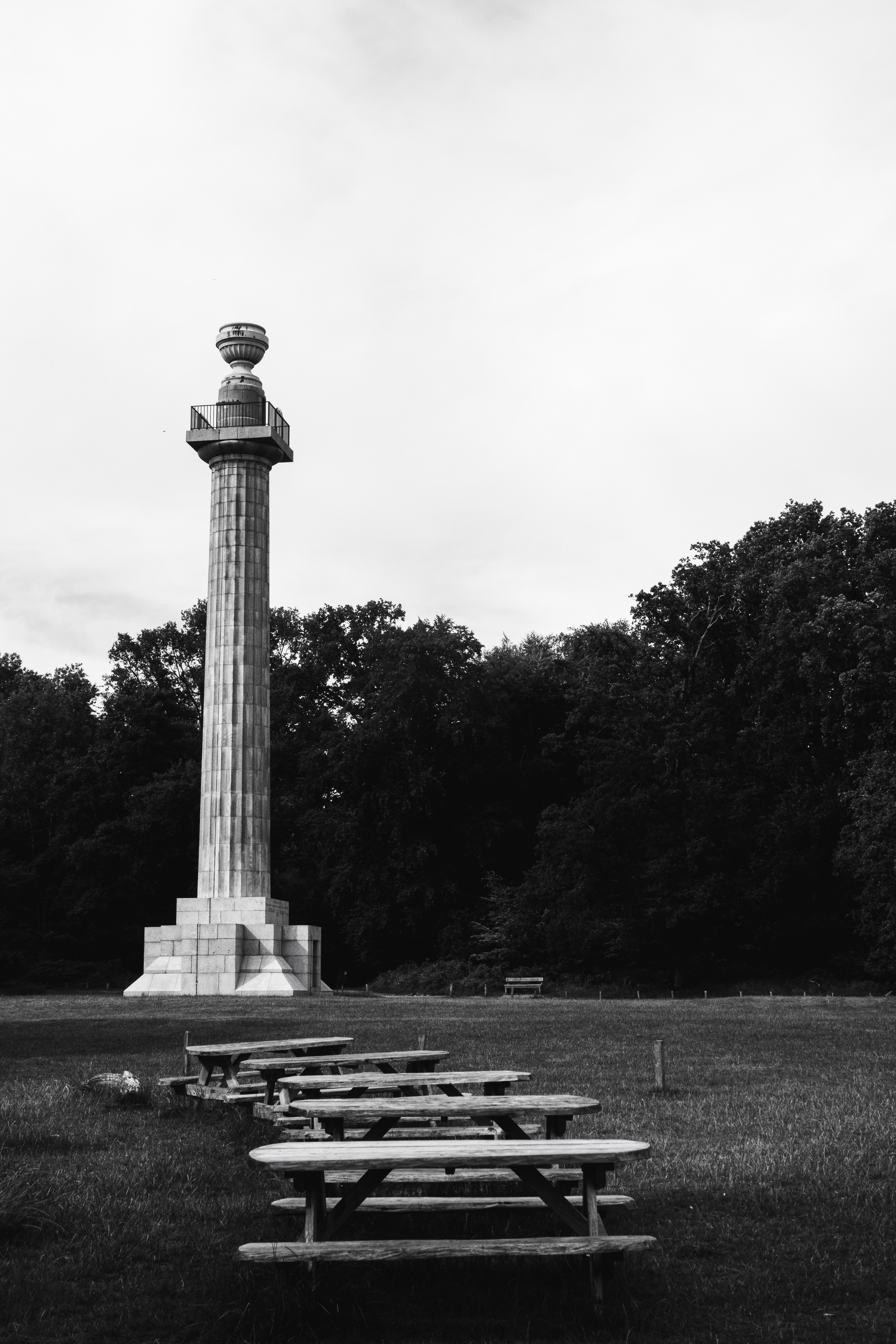
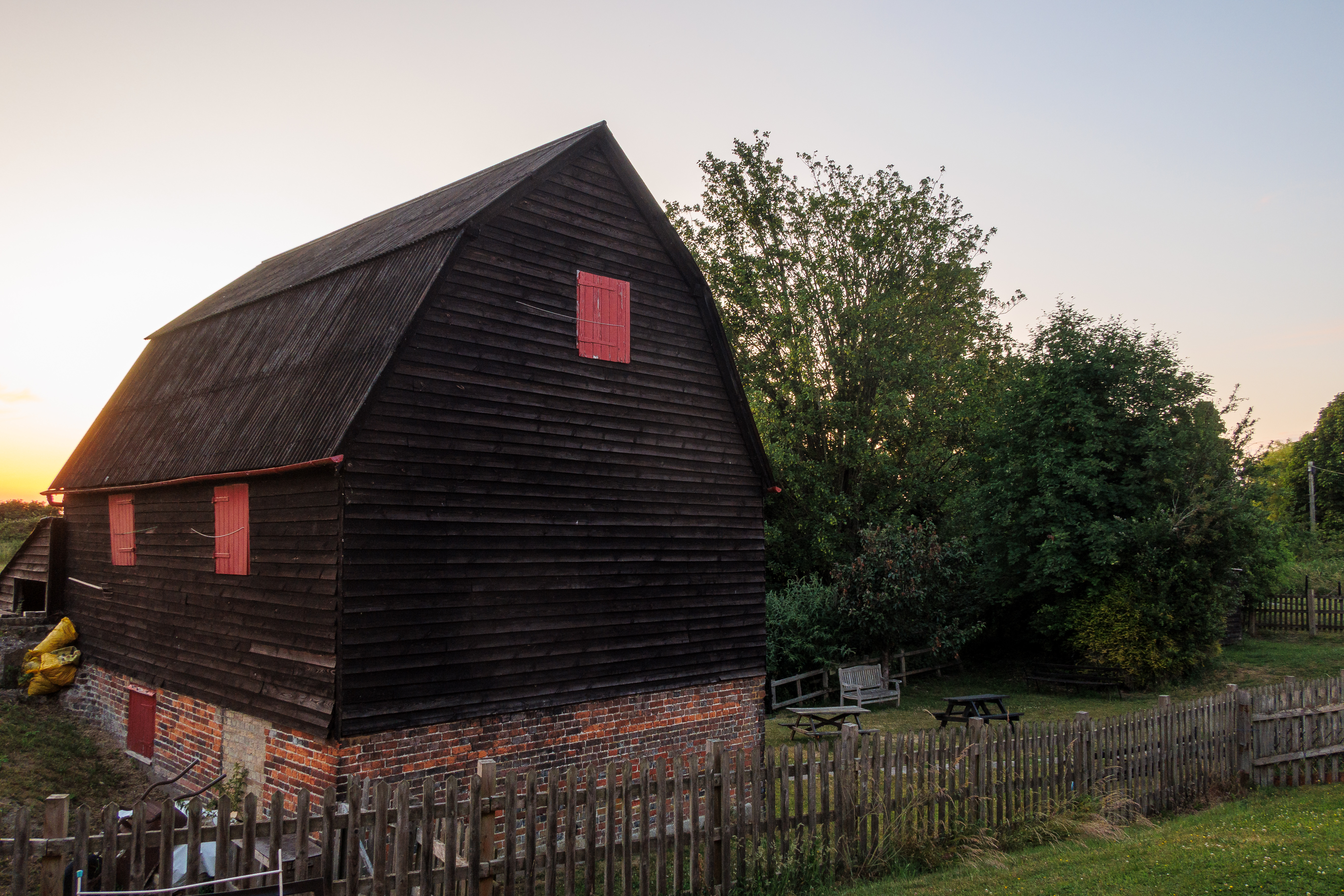
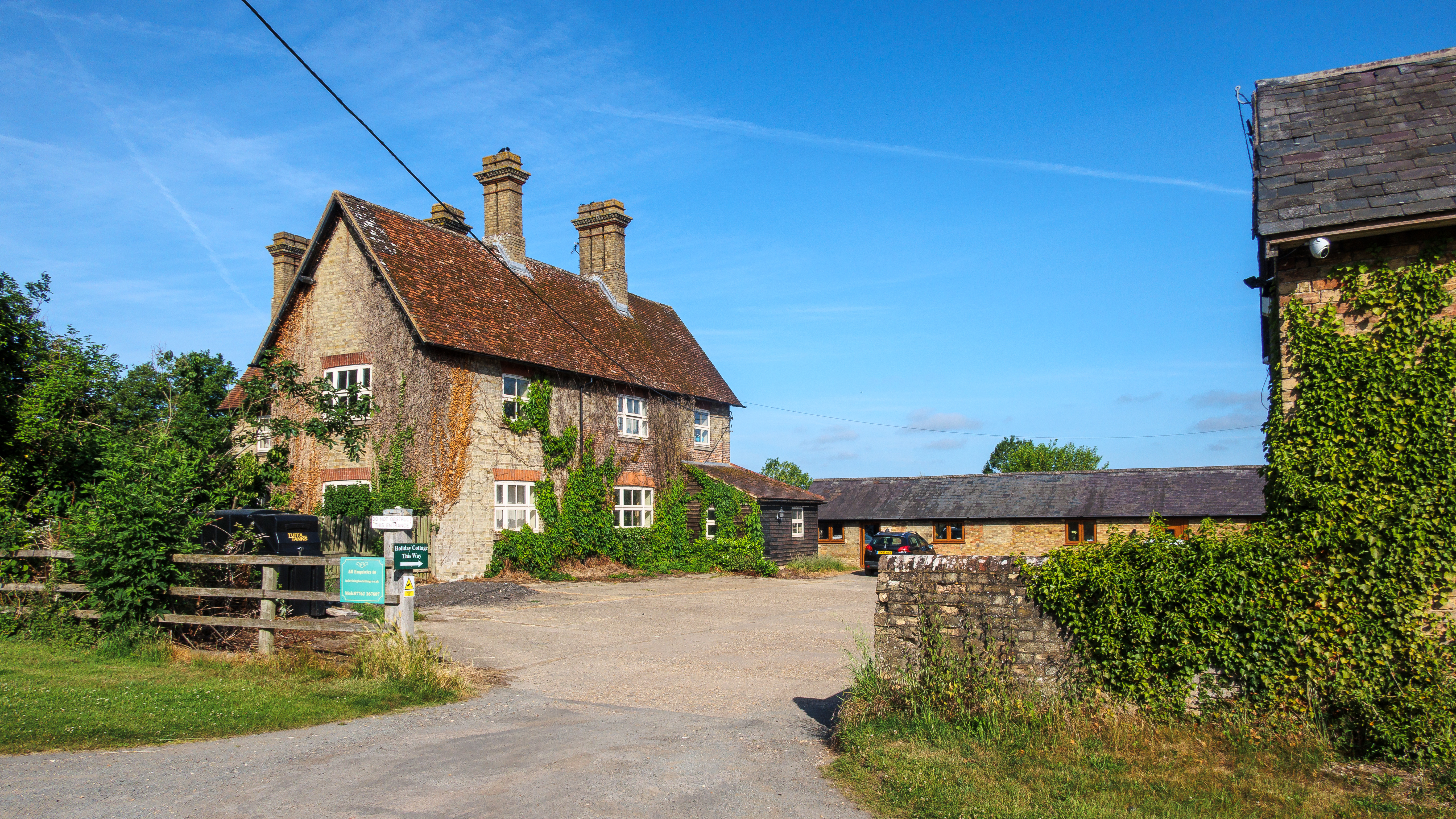
In the mean time, to go back on what I said above, I will share a couple of photos of our first few days back here in South East England. Having landed just five days before the Summer Solstice, we have immediately benefited from those long summer days. The weather has not disappointed either!

Initially staying near Ivinghoe in the Chiltern Hills, it has rekindled some childhood memories of growing up in the area. The big draw for me is the Ashridge forest and Beacon Hill. There is something about walking in and around forest that I find very relaxing!

So to get back on topic, I will start to post some tips and tricks that has helped me keep my tech and my photography going when away from home, and away from my trusty home network which has been shut down for now.

More to come…

Forests

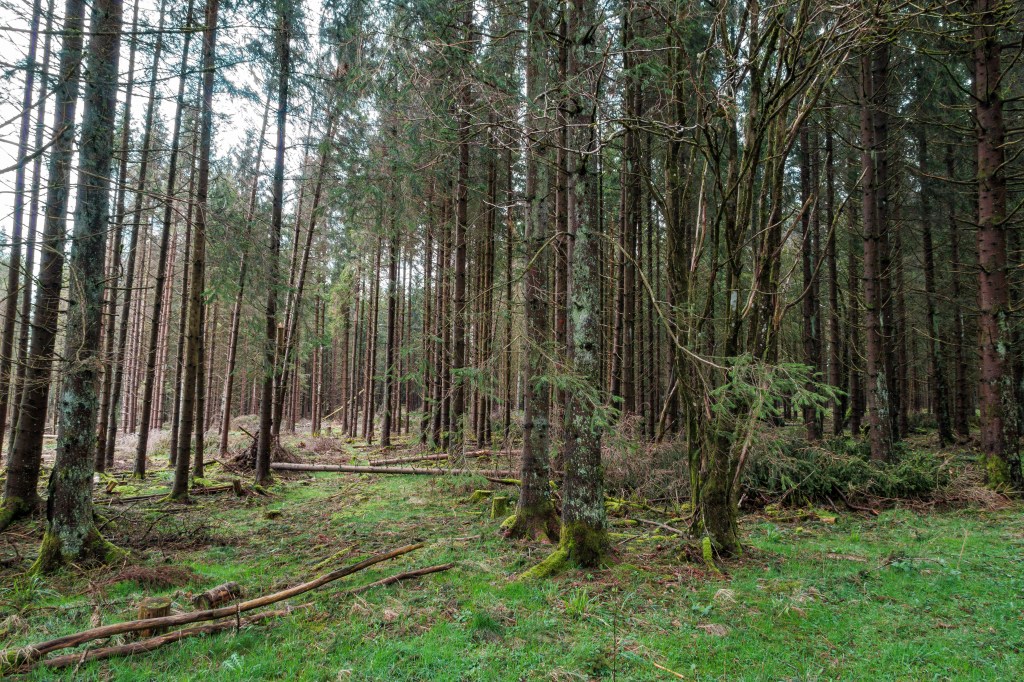
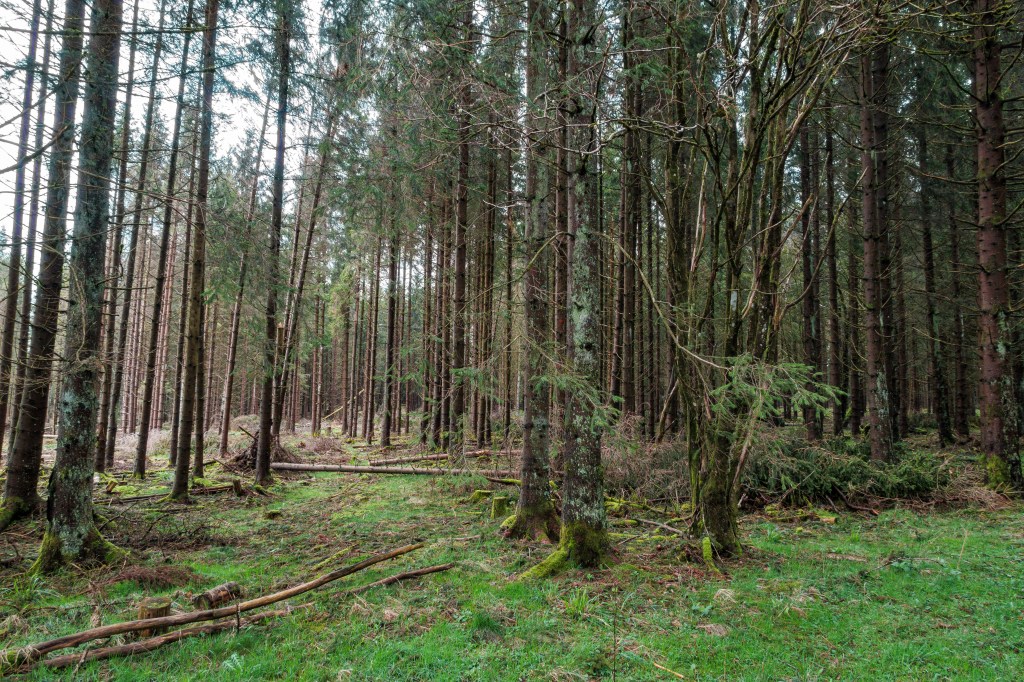
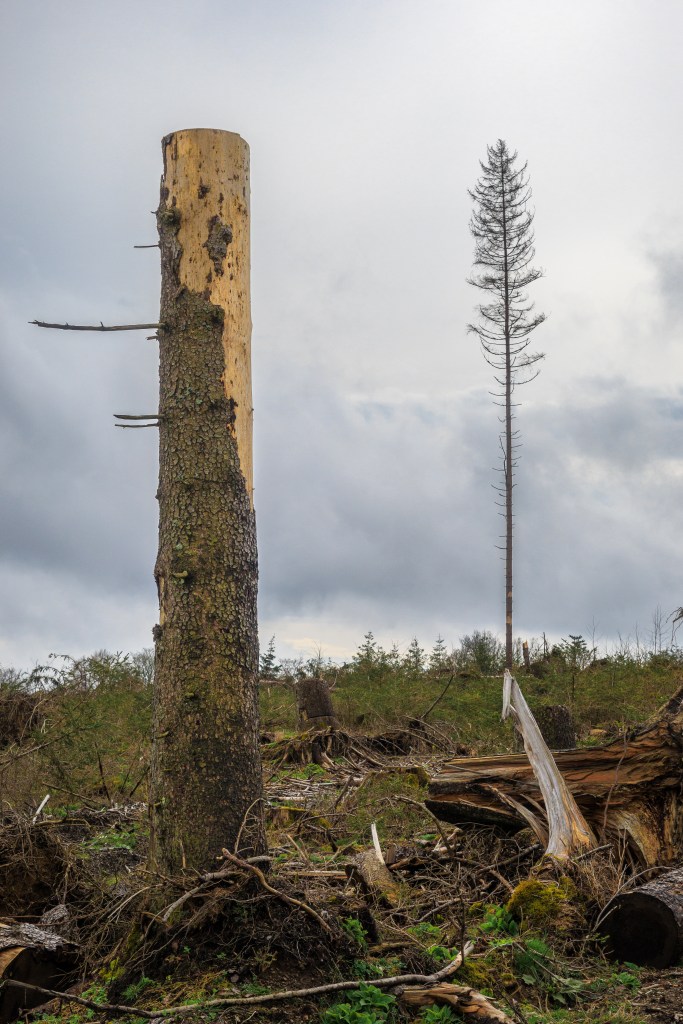
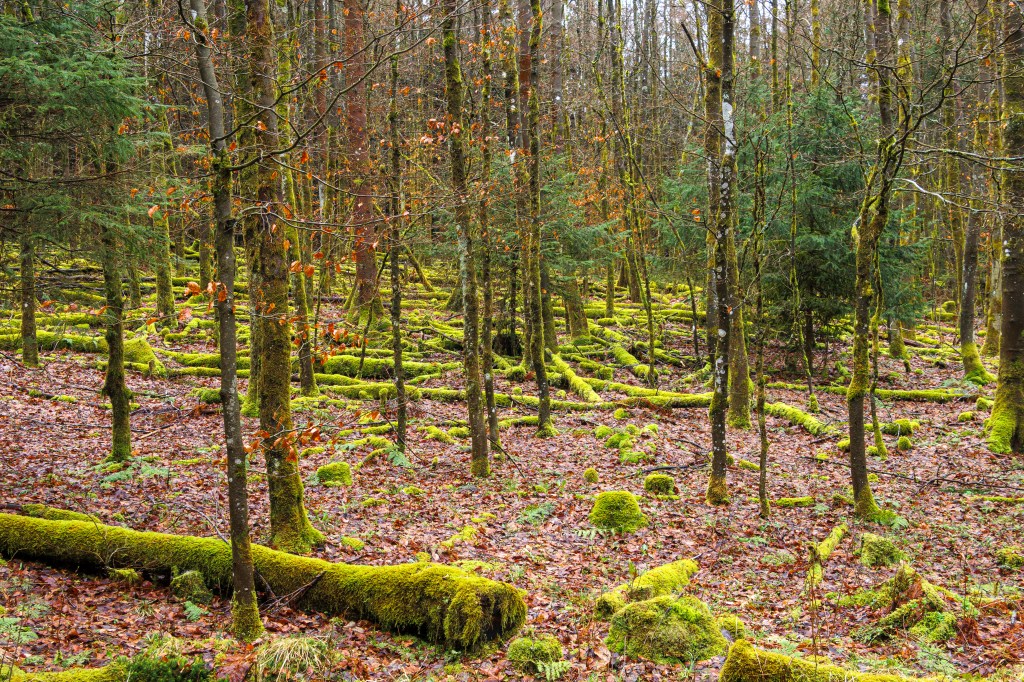
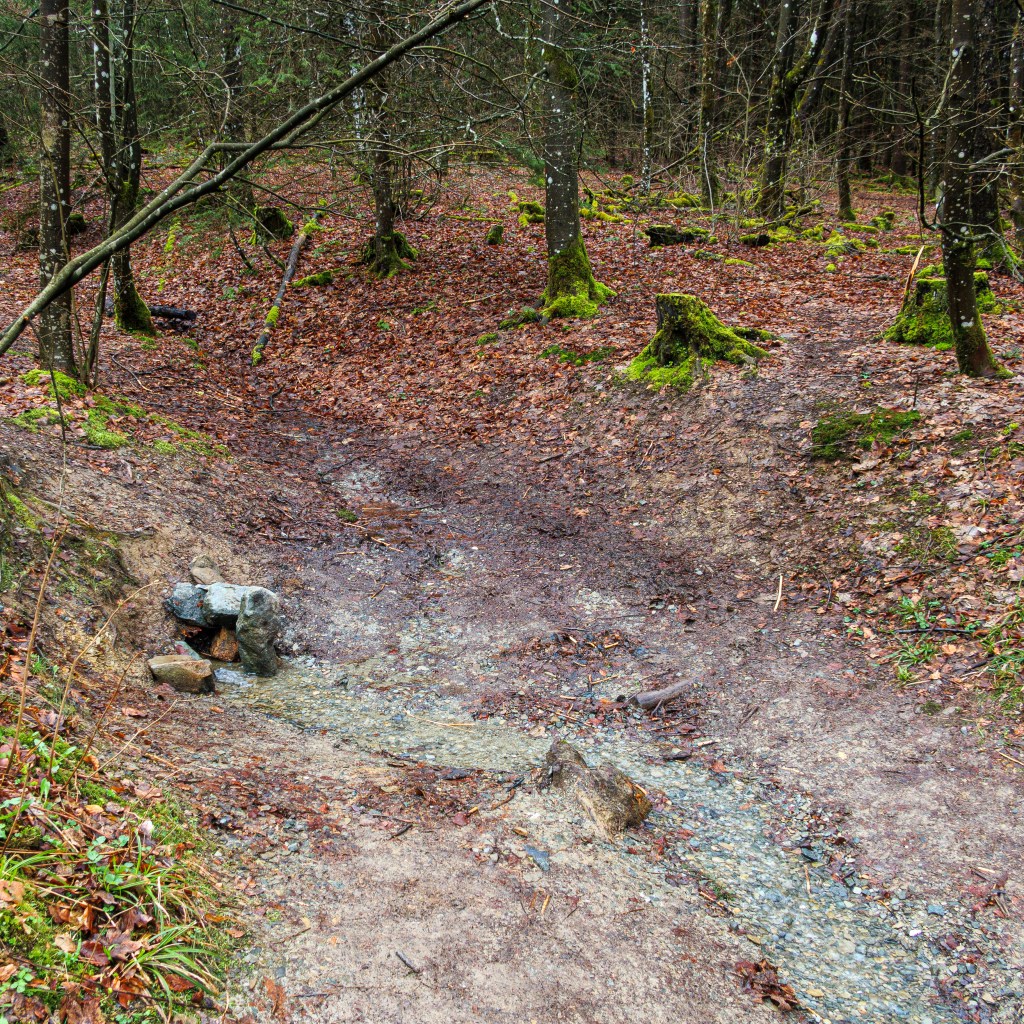
I do love a good forest. I recently spent a couple of weeks in Germany, a country covered in beautiful forests, and had the chance to go walking amongst the trees.
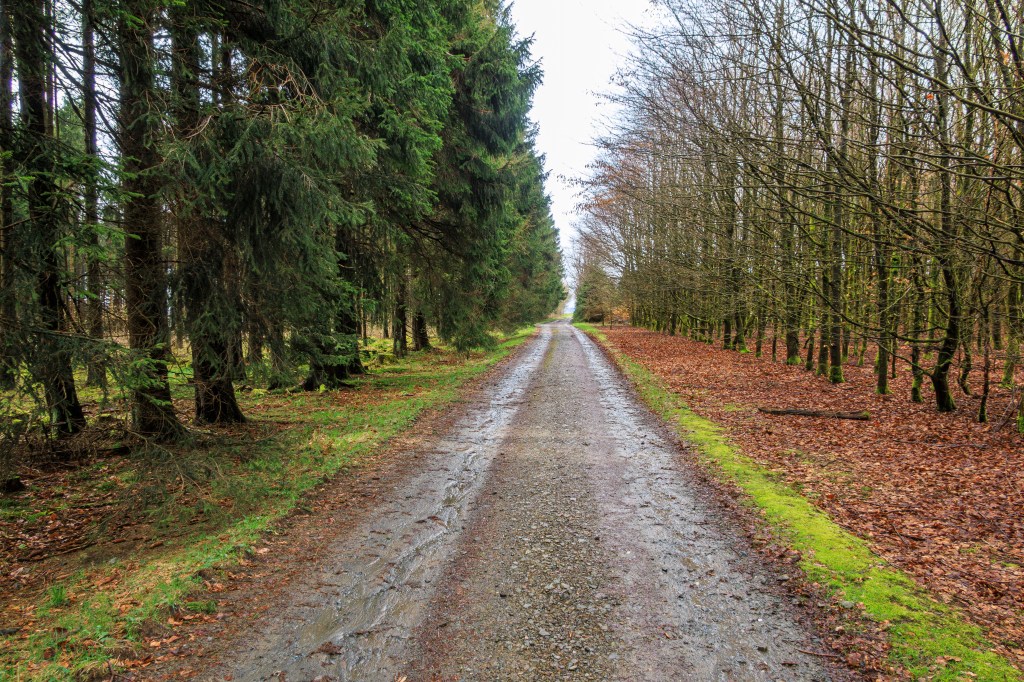
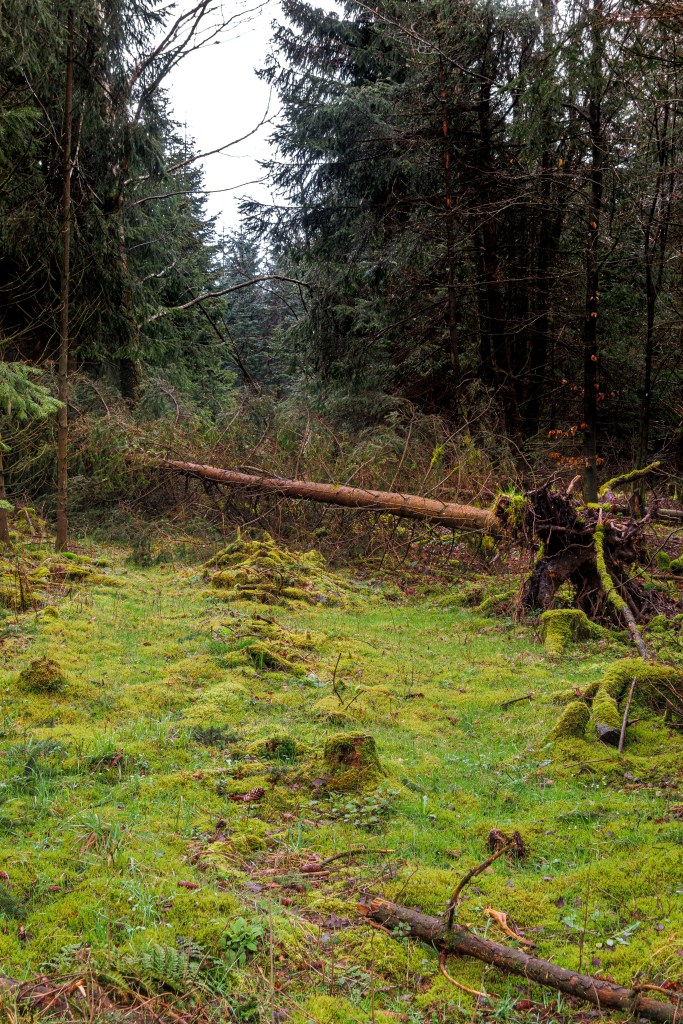
German forests tend to have wide, graded paths that can be used by walkers, cyclists, and any vehicles that need access. Even on a miserable day after a good drenching it’s still possible to walk amongst the trees without getting covered in mud.

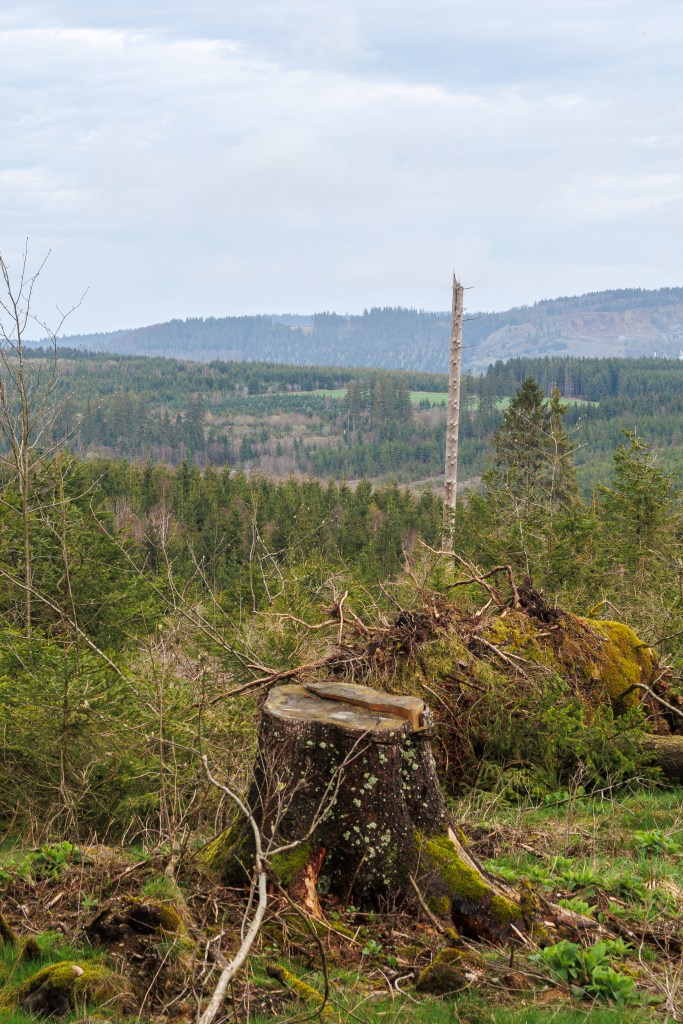
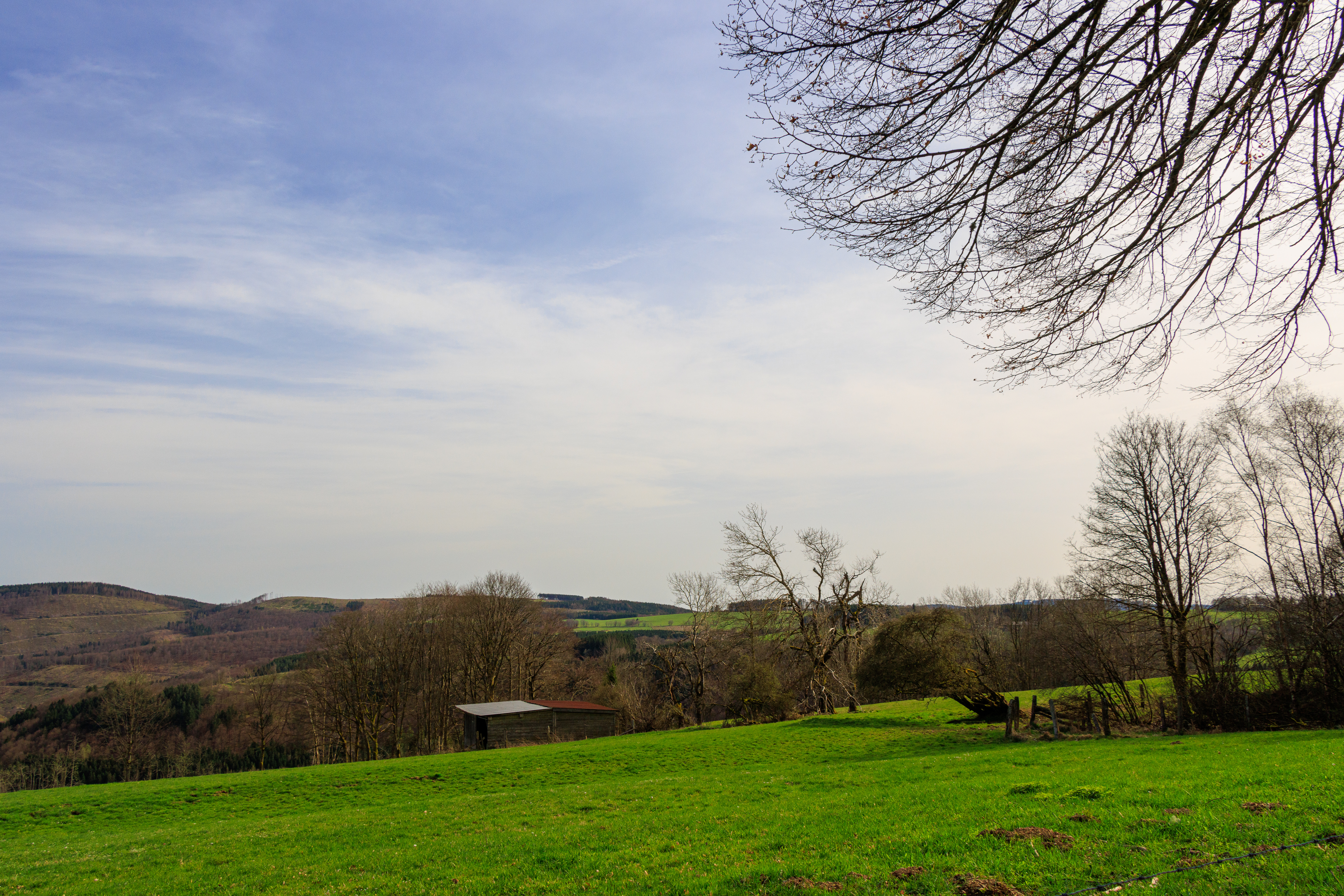
On my first walk, about 5.5km around the forests of Winterberg, I took my Canon G5x II with me and grabbed some shots.

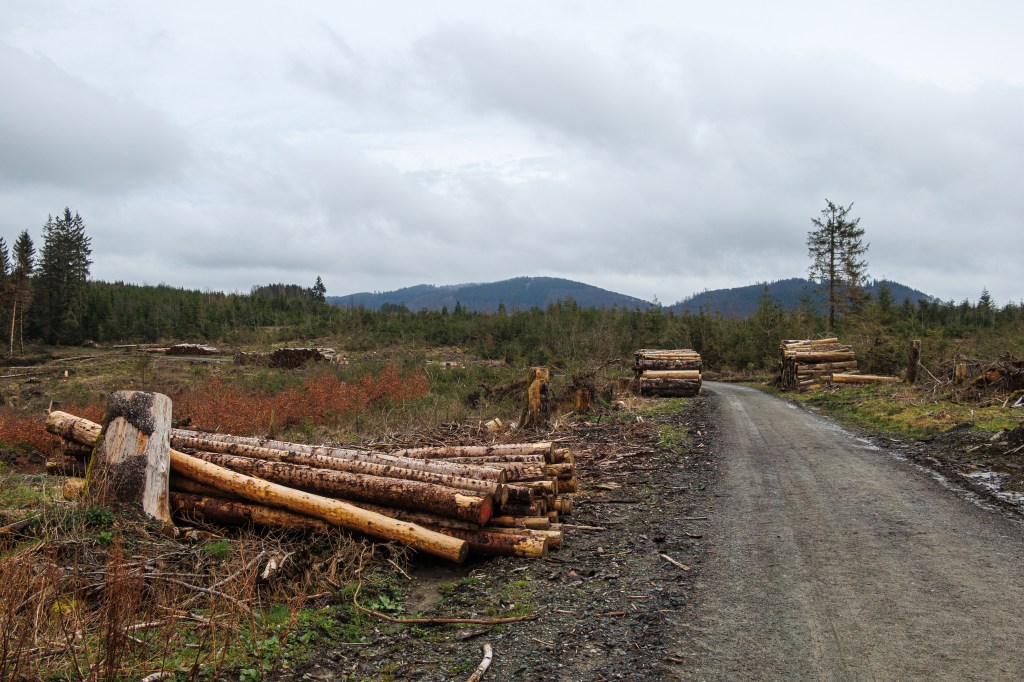
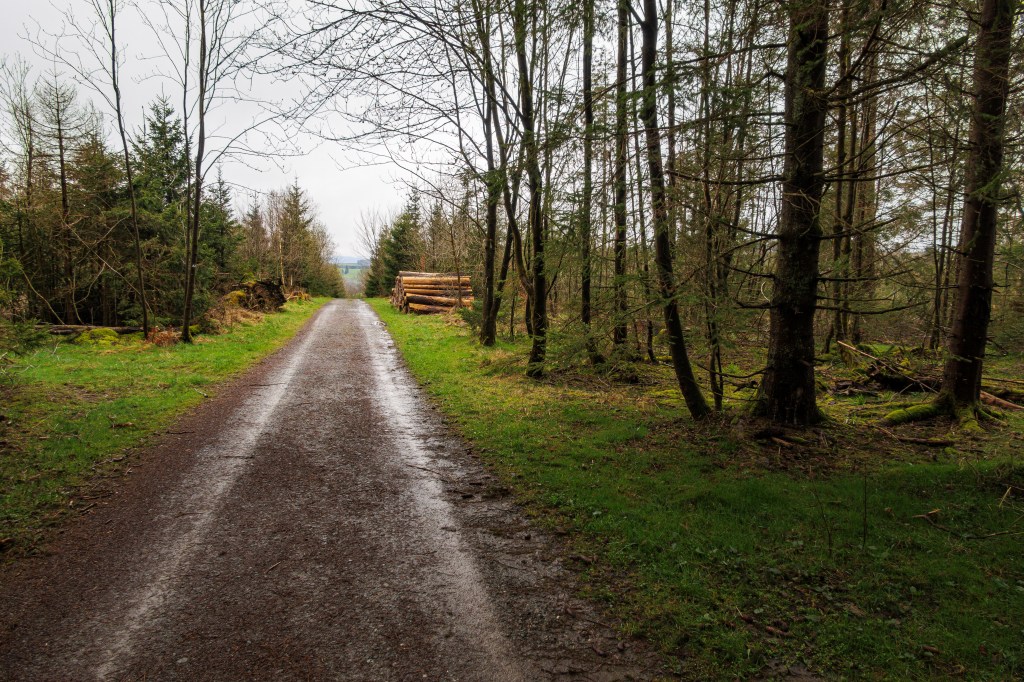
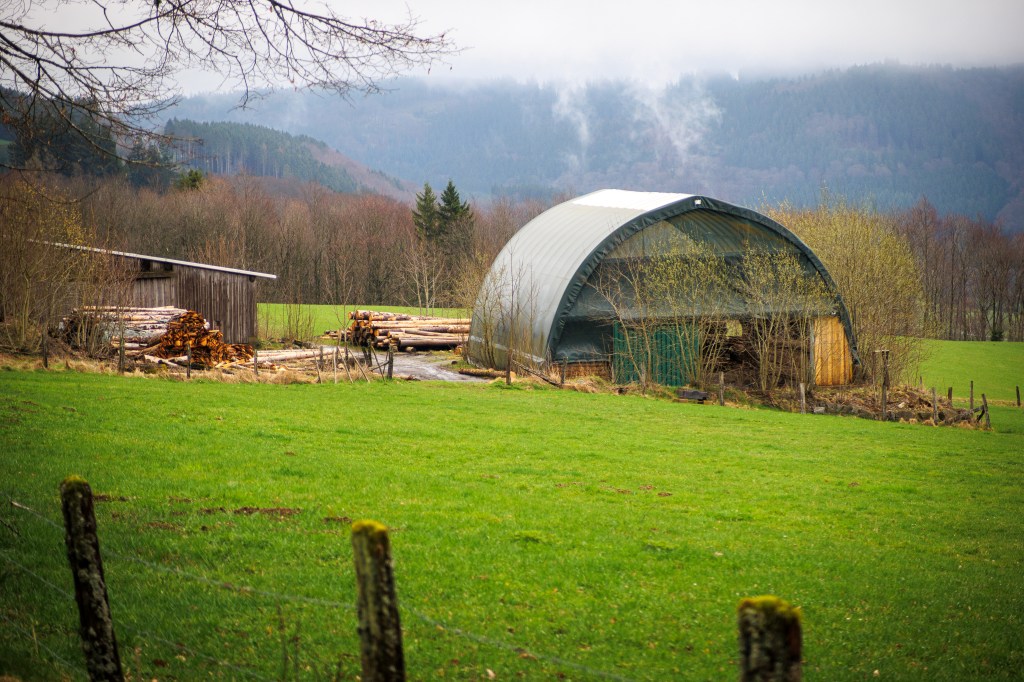
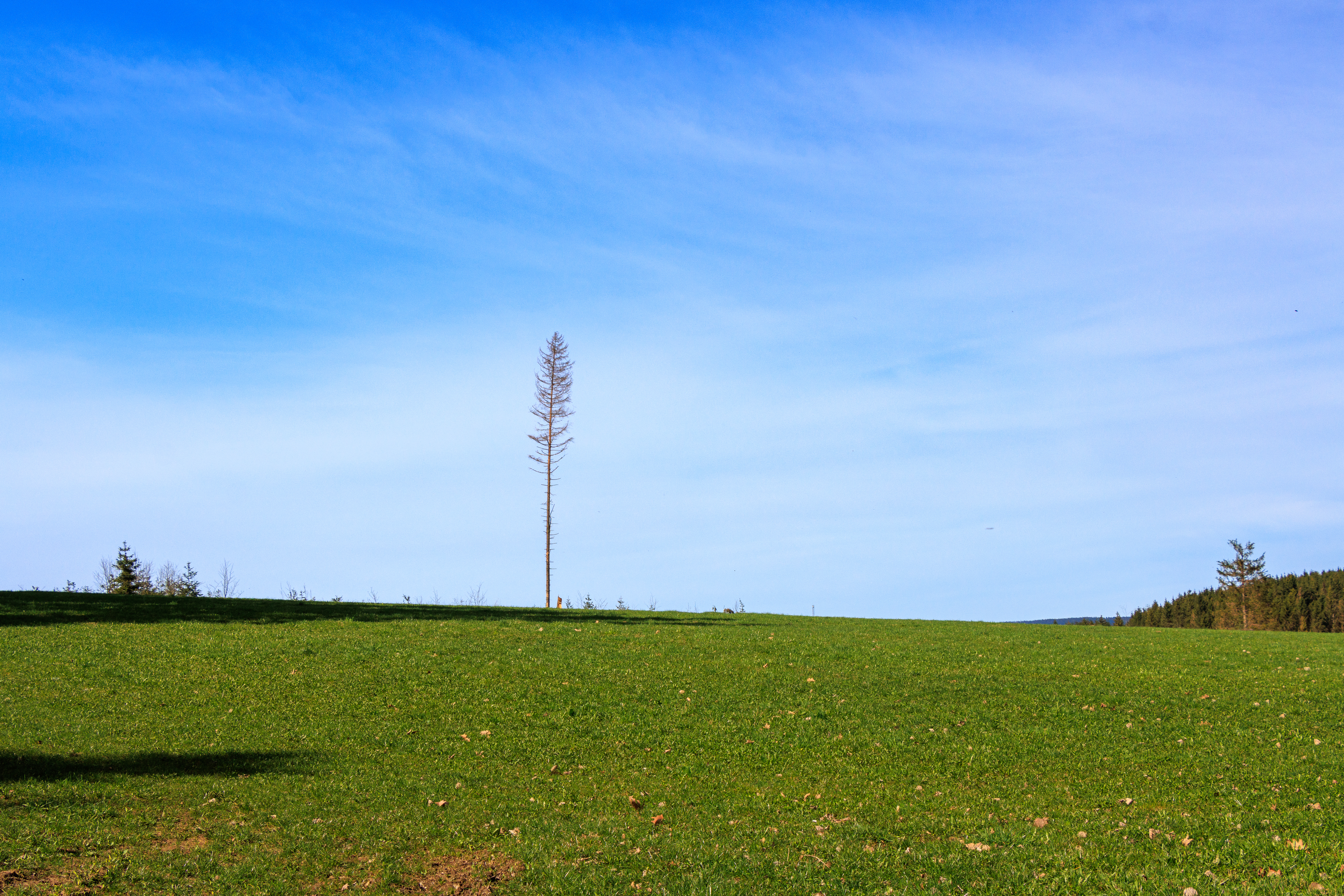
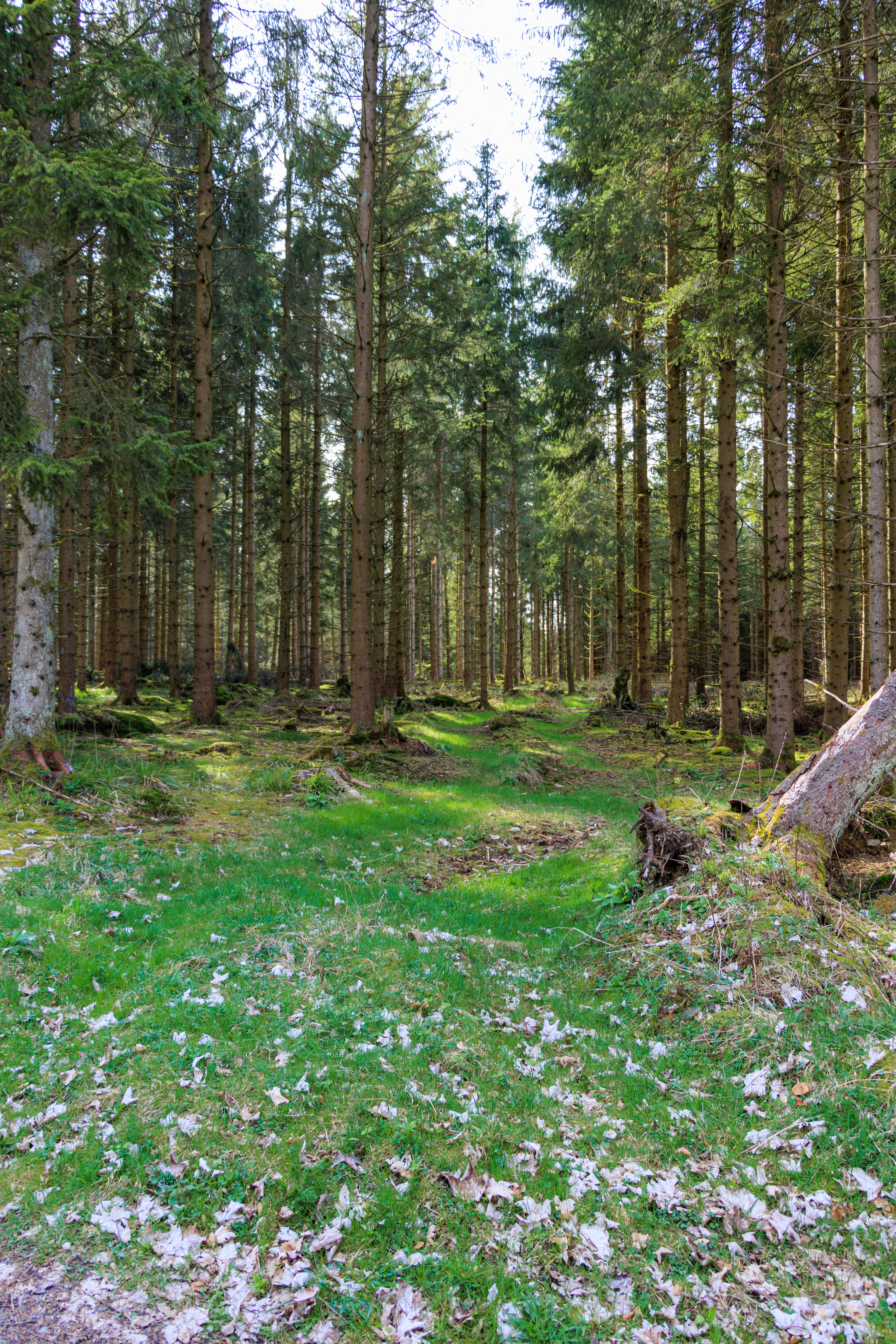
Below are some the photos from that grey Spring day:

It’s nice to see a working forest, complete with saw mill, and this one is healthy. I say that because the last German forest I explored was in the Hartz mountains where an invasive beetle has been destroying the trees. This particular beetle does seem to prefer evergreen trees and doesn’t seem to have either made it into the Hochsauerland where these photos were taken, or found the right sort of trees to get a good feed.

Sawmill outside Winterberg

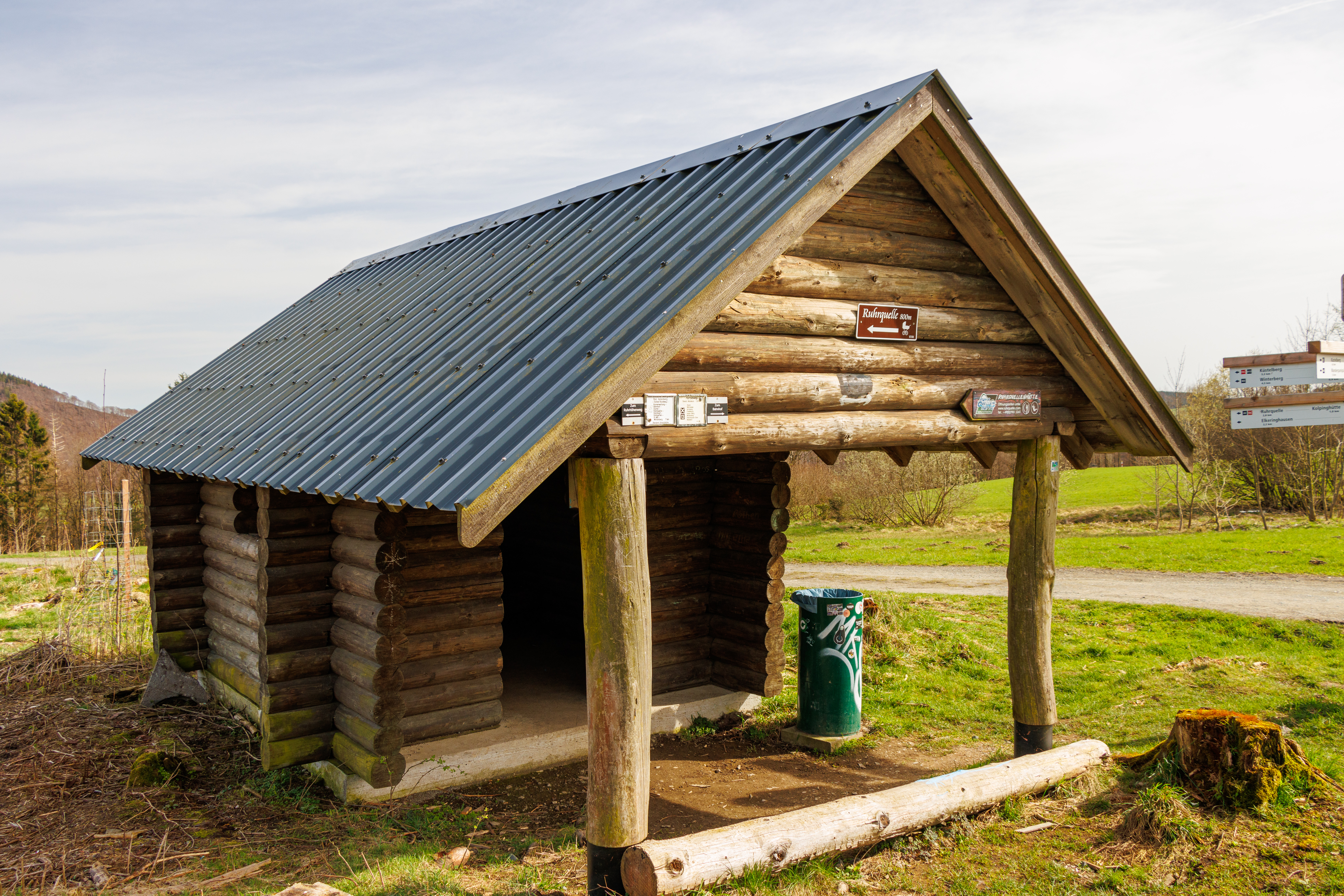
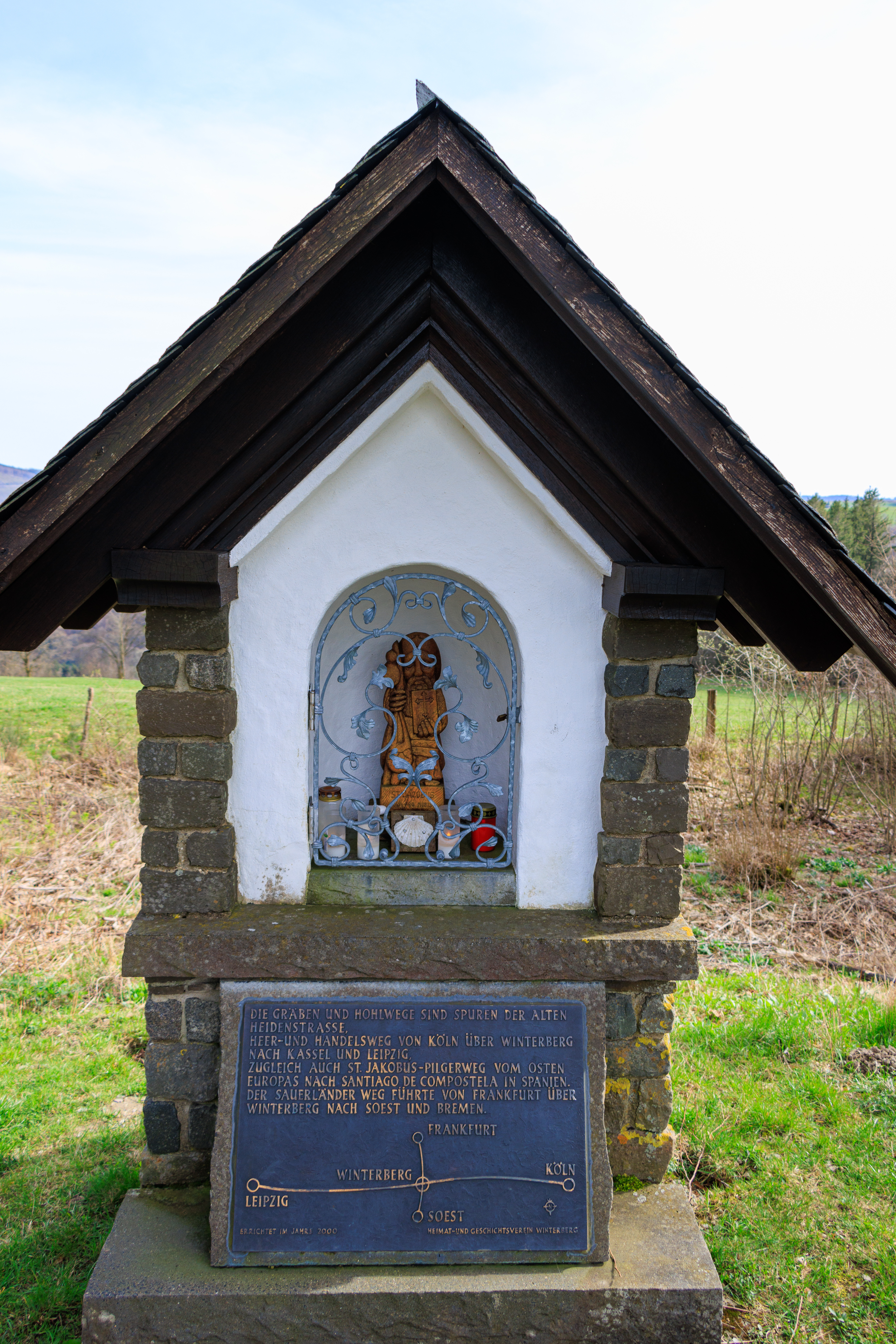
I should mention that when I set out on this walk I was actually looking for the source of the Ruhr river, which ends as a significant tributary to the Rhein, meeting it in Duisburg. In fact the Ruhr river has given its name to an entire industrial region in Western Germany, so it’s not too insignificant and I thought it would be worth hunting down its source.

The source of the Ruhr River… that’s it!

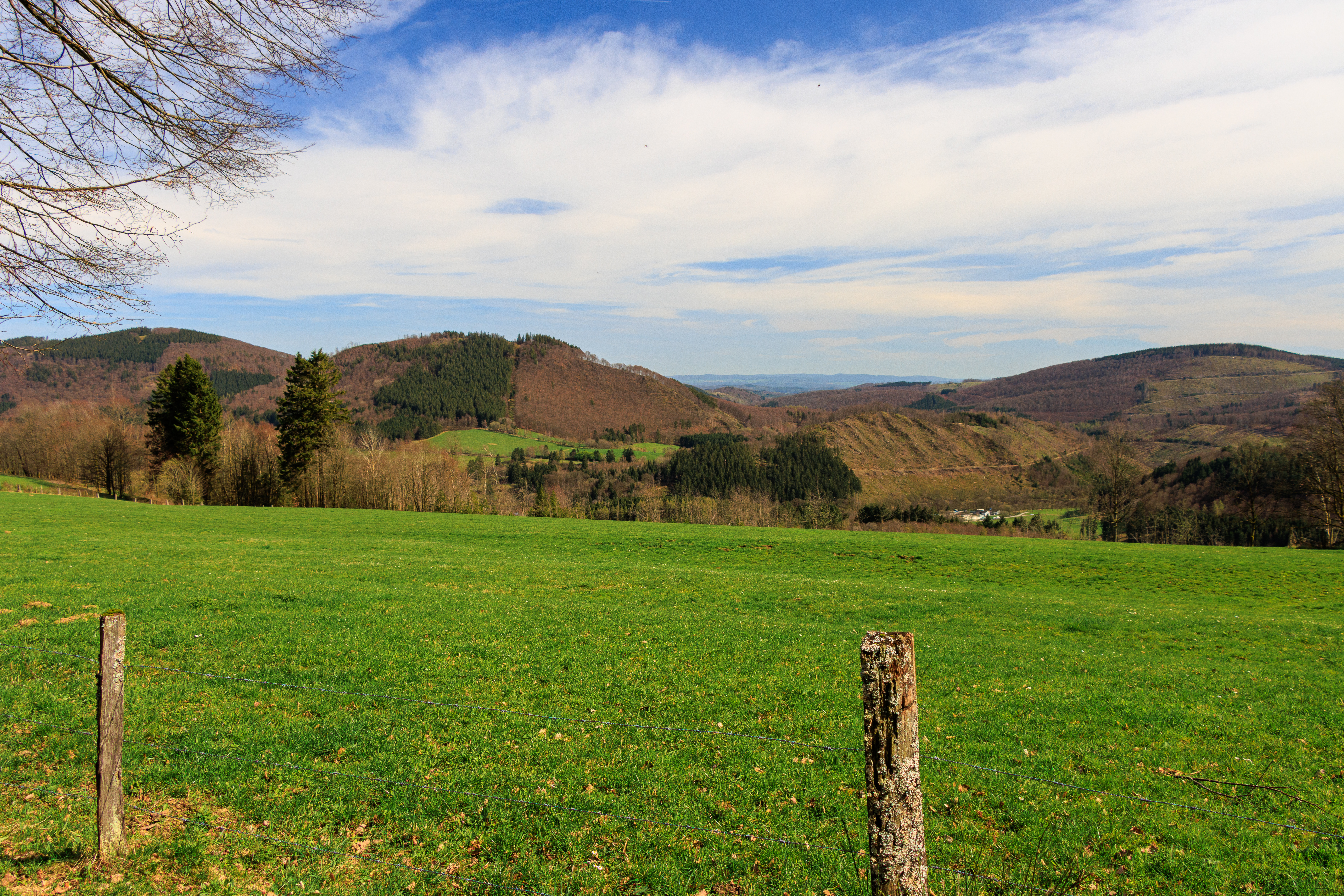
I’ll finish with a few more photos taken on another walk to the same spot, but on a slightly more cheerful day and with my Canon 90D in hand:

The system is overheating

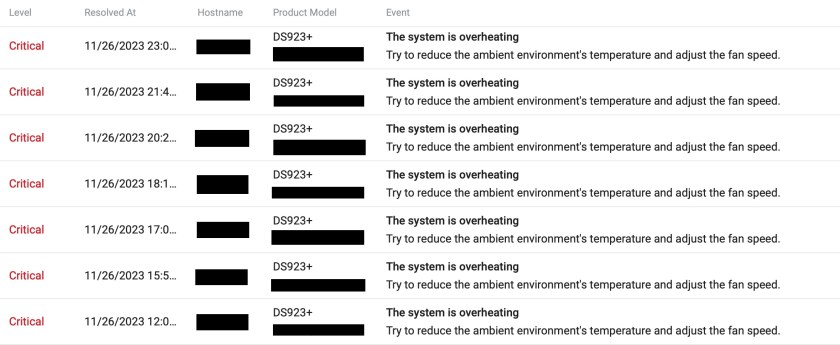
I recently started to get critical error notifications from my Synology DS923+ NAS, telling me that it was getting too hot. It coincided with warmer temperatures here in my office and as I bought the NAS in May, so it’s only seen winter temperatures so far here.

A quick look at the system parameters and I noticed that whilst the hard drives and M.2 SSDs were running within acceptable temperature ranges, the CPU was going well over 90C. I assumed that this is what was triggering the alerts as it also coincided with periods where the CPU was particularly active, such as when indexing media.

I was starting to get quite frustrated by the apparent lack of reaction from DSM (the operating system that runs the NAS) and its inability to respond to load and temperature changes with appropriate cooling fan speed. I ended up setting the fans to full speed, as opposed to letting the system adjust, and whilst that seemed to help reduce the CPU temperature I still got temperature warnings.

The final straw was when the NAS shut itself down as a precaution during a period of sustained high temperature. I decided to dig deeper as this was not going to do at all. I had already checked that both fans were running and not failing, so the next step was to consult the Internet to see if it was a common problem. It turns out it’s not, and I found very few posts if any about this so it must have been an issue specific to me. What I did find was some information on how to adjust the system parameters for setting fan speed and shutting down. Time to tinker.

I researched modifying a file called scemd.xml, which determines the fan speeds to use at different temperatures and the shut down temperature, for different components (hard drives, SSDs, CPUs, etc.). For anyone interested, and it is not recommended to tamper with these settings really, the links below might be useful:

https://rwx.consulting/my-new-office-is-slightly-warmer-than-my-old-office-or-manually-adjusting-temperature-controls-on-synology-nas/

https://gist.github.com/borekb/8746c61a6bf56de836680592a2f1b6ec

https://www.reddit.com/r/synology/comments/w6lus3/temperature_on_synology_ds_920/

As I looked through the pages and posts I found and looked through the config file on the NAS, the only option I could see was to increase the shut-down threshold for the CPU temperature. Doing some further research I could see that the AMD Ryzen R1600 in the NAS could potentially go about 15C higher than the shut-down temperature in the config file. But letting it run to 110C seemed like it wasn’t going to buy that much headroom and Synology clearly didn’t think this was a good idea either. Still, it was my only feasible option…

Just as I was about to launch into some mods to the config file I paused and thought again about the physics of the situation. Why was my NAS struggling? I can’t have the only DS923+ in a room over 25C on the planet. I sat and looked at the NAS, sitting on a glass shelf next to the old Synology DS420j when my mind wandered to what the air must be doing as the fans were running. I sort of remembered having to vacuum some dust off the large ‘Synology’ logo cut-out (with mesh in it) on one side of the unit, which was clearly where air is drawn in. What if it had something similar on the other side of the casing, the side sitting up against the other NAS? Well, there will be no gasps of surprise when I say that there is indeed a ‘Synology’ shaped air inlet on the other side. So what if I open the gap up between the two NASes? Well, lets just say that embarrassment of my stupidity gave way to relief!

Summer is here

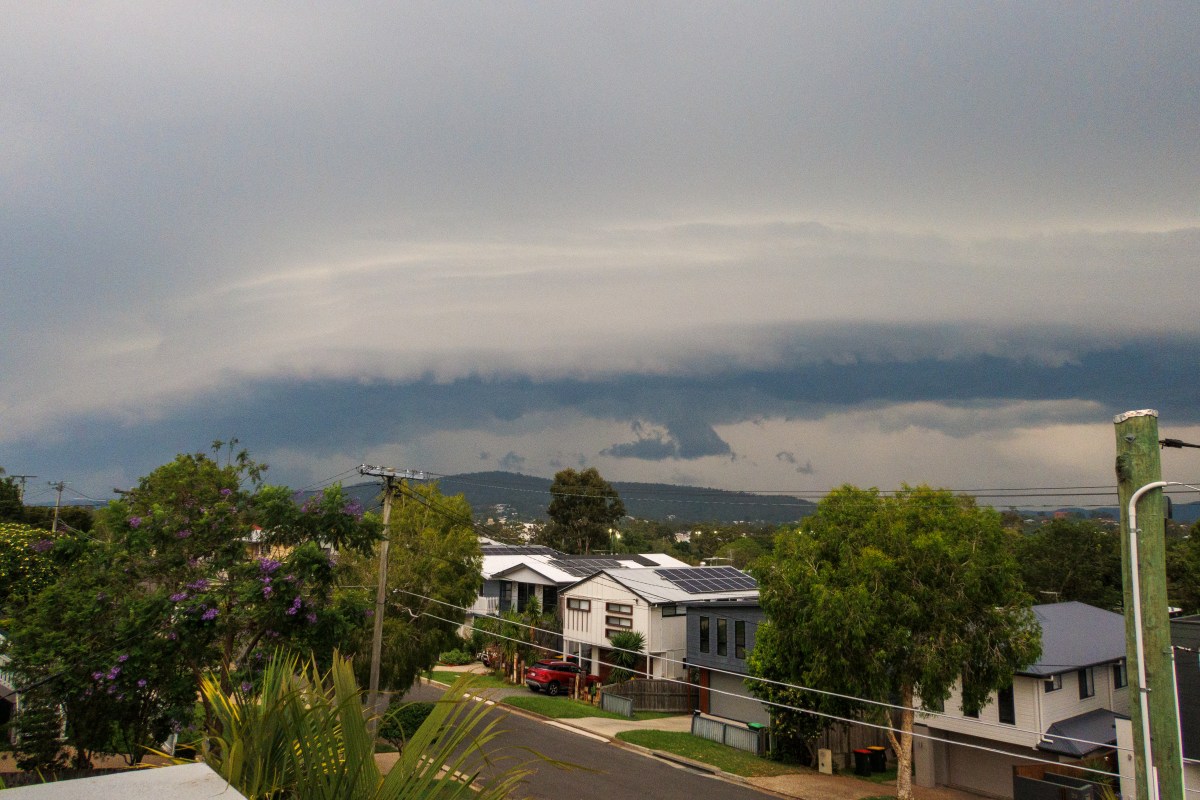
Summer is now here, although it’s been quite warm for the past few weeks. We are now into daytime highs of 30C-35C, and storm season is also here. I took some photos of a cloud shelf coming in from the west, late yesterday afternoon.

It came with the expected wind gusts, but wasn’t quite ready to break over us. We got a few spots of rain but no other storm activity. That followed quite a bit later and then again over night. I always amazes me how the temperature can drop after one of these passes over.

I’m now looking forward to a few more nice storms next week, although the forecast keeps changing, and there was even talk today of a cyclone forming in the Coral Sea!

Are you a… collector of things?

We used to tease my poor old Grandad about how he kept so much stuff. His cupboards were full of tins and packets of food, and his garage was on another level. He had anything and everything, from pieces of wood, bits of metal, and even old tennis balls. He just couldn’t throw anything away. You never know when it might come in useful, eh.

A few decades later and I look around me and I think it might be genetic. I can’t throw things out, and even worse (and to my wife’s dismay) I won’t sell things either. After all, you never know when they will come in handy.

On top of the cupboards in my office I have the empty boxes of items that I bought. They are for the more expensive items, like cameras, computers, speakers, etc. but I do keep boxes for most things, at least for a bit. What I do do is to go through them every couple months and throw out the less important boxes that clearly won’t be needed to return an item. Similarly, every now and then we go though the garage or the shed where we store everything else and have a good old purge. We throw things out that missed the last purge, and items that just are not worth keeping anymore. We can thank the silverfish and other insects or larger animals for that. There are clearly checks and balances in place.

But for me this goes beyond the physical. I hoard data. My data, my family’s data, backups of the data, backups of backups… I can’t bring myself to delete it. You never know when you might need it!

Of course, data doesn’t use up any physical space. Cloud storage can be upgraded, storage devices can be bought. Only this weekend I was running low on storage on my main NAS so I could either go through it all, worry about whether I can delete this or that, and then choose what should go, and that’s a lot of time and effort required right there, or I could jump onto Amazon or Umart and just order some larger hard drives.

I sat down in front of my computer and started to look though… yeah nah, that wasn’t going to happen. Easier to order a couple of 12TB drives and pick them up from the supplier. Ordering, collecting, and then swapping out the first drive took about an hour in total. Too easy. The second drive will go in when space runs low again. My data hoarding credentials are in tact. No data was harmed in this story.

Now the question I have is, is this normal? They say that no matter how much storage you have, whether physical or for data, you will fill up 80% of it in no time. I actually think, as I speak with people about here and there, that many people will hold on to things. My fellow residents of Queensland are a testament to this. A drive up the coast towards Wide Bay and the evidence is all around, in the front and back yards of the scattered properties. Old cars, washing machines, car tyres… it’s all there and might come in useful one day. Perhaps.

I really do think that most people are naturally averse to throwing out anything that might be of use or needed one day. It wasn’t just my Grandad and me, but many people are just like that. It’s just practicalities that get in the way, like running out of space, being moaned at by the uninitiated, and wanting to keep the place tidy. But deep down we all want to hold on to things. You never know, you might need them one day.

Is Old Film any good?

As we were doing a bit of a sweep through our belongings in storage about a year ago, I came across a heap of old photography kit. Amongst the cameras, projectors, and other accessories there was some old film. At least four rolls of it.

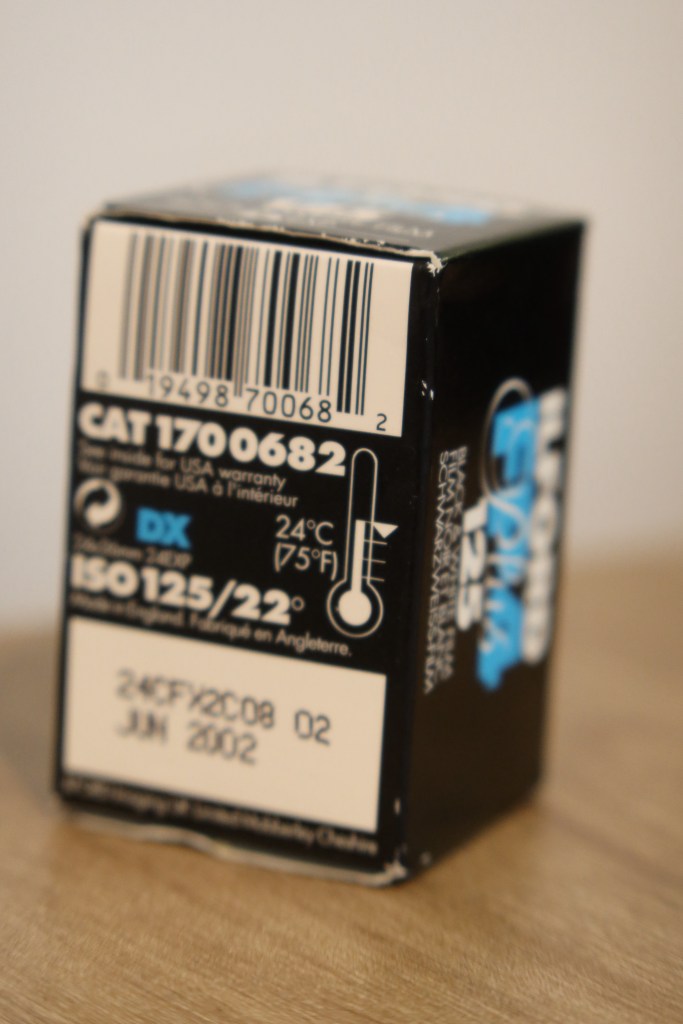
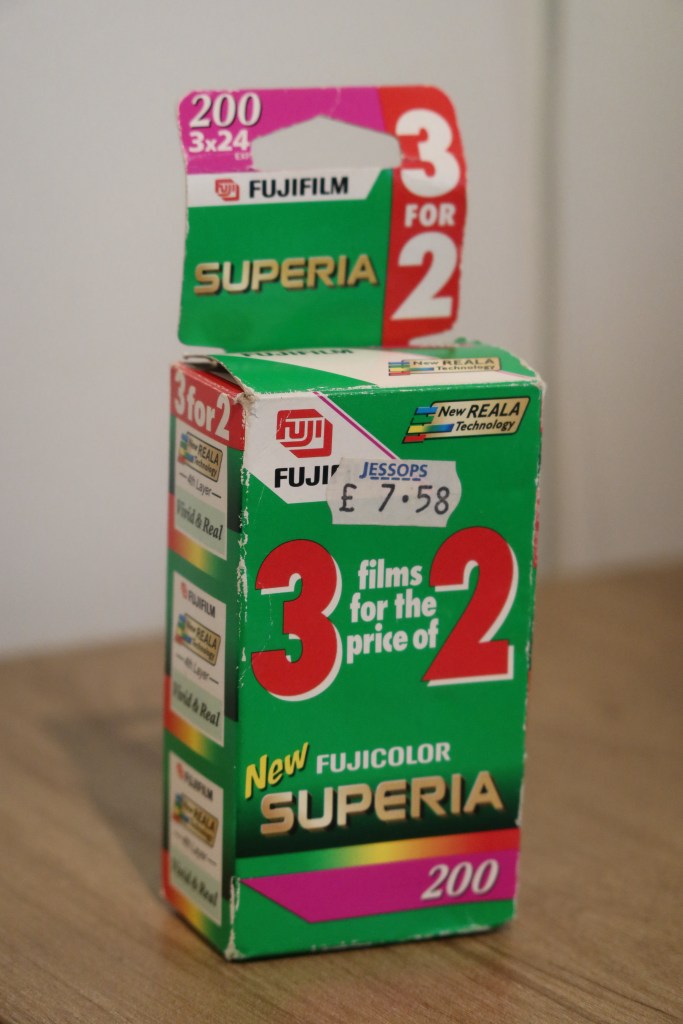
I’m not sure what I was more intrigued by, whether the old film would be any good or the price that I paid for it way back when. All of the film had an expiry date of sometime in 2002. So basically 20 years old. In addition to that, it had spent the past five years in up to 40C (during the Summer) so wasn’t exactly looked after.

The first thing I did was to consult the Interwebs and read a few articles like this one – The complete guide to shooting expired film. Apart from noting all of the things that could go wrong, the key piece of information is around what adjustments need to be made, and there is really only one that needs to be done at exposure time. Basically, what most guides talked about is to set the film speed one stop slower per decade over the expired date, when setting the film speed on the camera. So for the Fujicolor Superia 200 that I had, twenty years pest its expiry date, I set the camera ISO to 50. That seemed quite straight forward.

I loaded a roll into the Canon A-1 and set the ASA to 50 (yes, the camera is that old but ISO and ASA numbers are interchangeable). As I started to take some photos I realised just how slow ISO 50 is. I mean, really slow. Even with an f1.8 lens I had to keep an eye on the shutter speed if I wasn’t shooting outside during the day. I have no idea how my Dad used to use Kodakchrome 64! Now, I’d like to skip over the part where I loaded the film and shot loads of photos only to realise that it hadn’t engaged properly in the take-up spool. However, lesson I learned from this, and I will share with you now, is that it doesn’t pay to be tight with film and try and get as may frames as possible onto the roll. It’s better to wind on with the back open and visually confirm that the film has been taken up. The other thing that I realised is that on the A-1 the winder knob set into the ASA ring should rotate as the film is advanced. Something to keep an eye on for the first frame or two. Anyway, enough about that. The film was reloaded, properly this time, and I took some more photos.

Now might be a good time to mention the risks of using old film. Whilst the adjustments to exposure are straight forward, to me there are only really two risks. Loss of memories and loss of money. If the film wasn’t useable then the photos taken are lost, and the money spent on developing them is wasted. So, don’t use old film for important photography and don’t be surprised if the money spent on development is wasted. It does add a frisson of excitement to the whole thing though.

Anyway, I digressed there for a moment… I did have the film developed. Obviously as with loading the film for the first time in a couple of decades, taking a film in for development was also something I’d not done in a while. The difference is that there is now an option to have the developed negatives scanned and shared instantly on a cloud service, and by not having the photos printed there is a cost saving. Winner winner. However, at A$25+ to develop and scan the 24 exposures it’s also a lot more expensive that I remember.

I was sent an email with a link to a Dropbox folder and I downloaded my TIFF files straight away. It should have been the same day I dropped off the film but it turns out the machine was broken so they had to send the film interstate to get it developed.

What I got back had quite a distinctive look, and not to bad I reckon. Colours were a bit washed out but the photos had a… look about them. I like. What I don’t know is whether there was any compensation applied when the photos were scanned in, but as I had to collect the negatives within two weeks and I now have them I should really look closer to answer that question.

The second roll of film is now in the Canon EOS 500N and I’ve not slowed it down quite as much. This time I’ve gone for ISO 80. The film has been sitting in the camera for a while now so I need to get a wriggle on and finish it off to see what the photo look like.

In summary, the twenty year old film that I found in the shed still works… sort of. I will probably use it all up over the next few months and suck up the development costs just because I can.

There is also a black and white roll that I need to use. I can guess how the remaining two rolls of Fujicolor will turn out, but the roll of Ilford is an adventure yet to be lived.

A Lifelong Love of Cameras

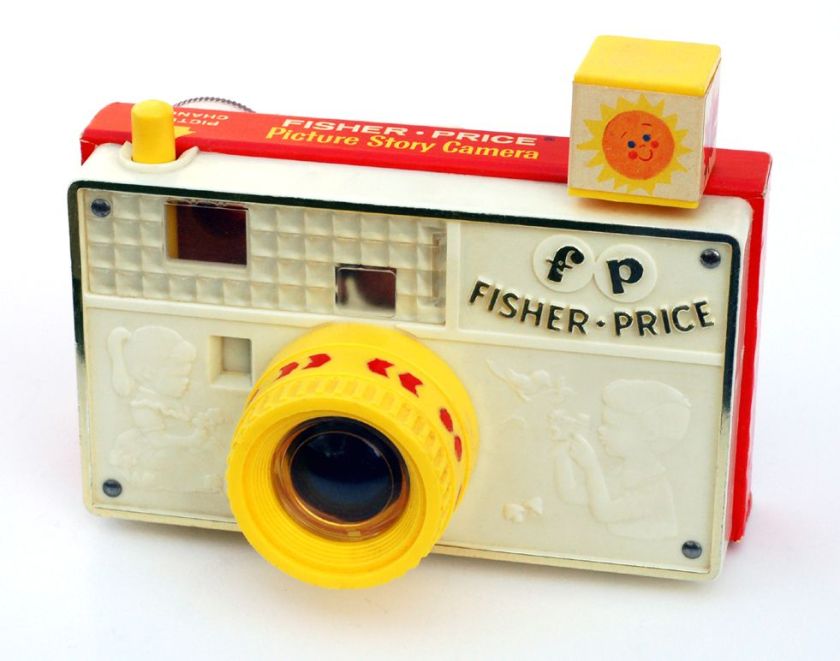
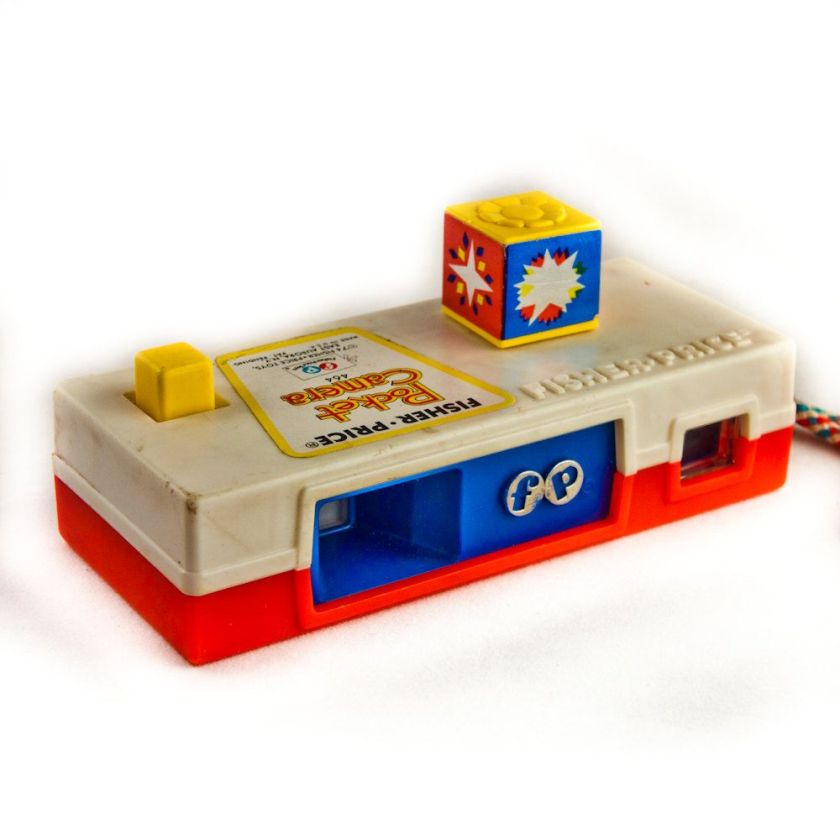
I’ve always been fascinated with cameras, and what they can do. When I was very young I used to watch with fascination as my Dad took photos with his SLR. I think I loved the idea or being able to change the lenses. I had my own little Fisher Price toy camera, and I remember using a used toilet roll as a telephoto and popping it over the end of the toy camera lens. Of course back then toy cameras were just toys, not actual cameras for young children which is what my kids later had. My brother and I used to take our little Fisher Price cameras with us whenever we went on a family outing, which from what I remember, was quite a bit.

When I was eight, I think, my grandmother gave me own proper camera for my birthday. It was a Polaroid, but not one of those where the photo comes out of the front… with this one I had to pull the exposed photos out of the side, let it sit for five minutes or so and then peel the photo off the backing. It was quite messy and the chemicals could get everywhere. But it was a camera, and I did used it as much as I could. The downer was the cost of the film, so I was a bit limited in how many photos I could take.

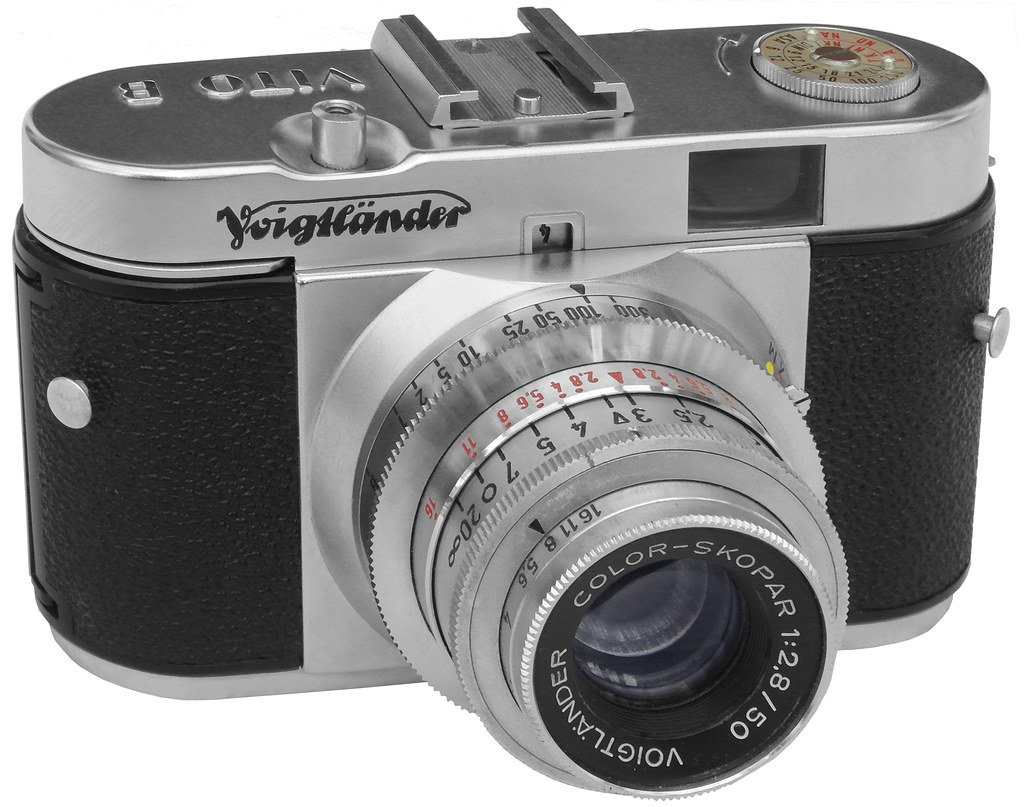
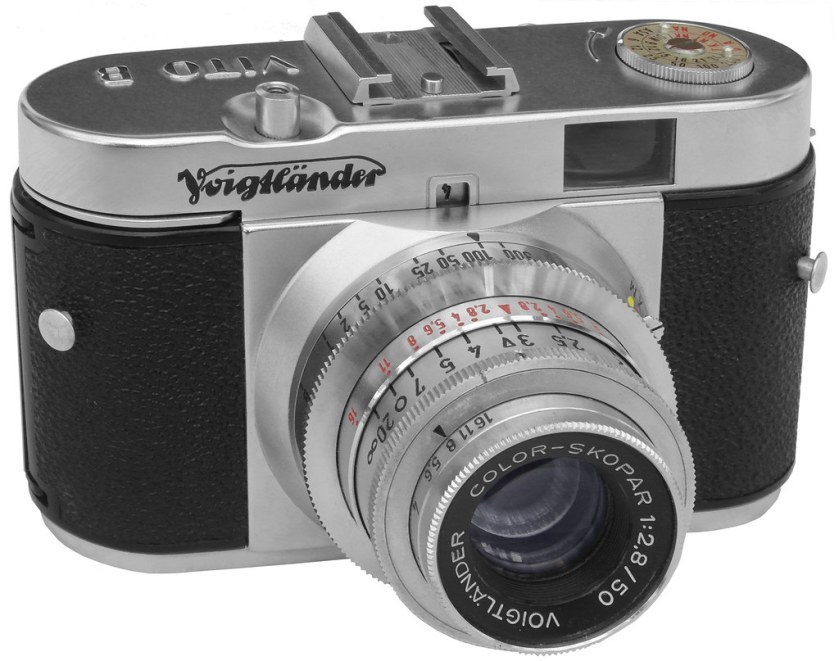
When I was ten , my Dad dusted off his very first camera that I believe he received as a 21st Birthday present from his parents. It was a Voigtländer Vito B, a fully manual camera with no built-in light meter. He bought me a new light-meter and a roll of black and white film and taught me the basics of aperture and shutter speed. Focus was manual based on judgement – there were not focusing aids. This was the first proper camera I used, and I am now glad it was because I had to learn the basics. I completed the first roll of film and we had it developed, with a contact strip print to look at the results. Overall I thought I did quite well, and from that time on I switched to colour negative film.

As I took more photos I started to dream of having a proper SLR, like my Dad had. As he had a Canon A-1 I was only really interested in Canon so I started to look into buying one with my savings. I ended up going for the Canon T70, which I got as a kit with a Tokina 28-70mm lens, from what I remember. I must have been about 14 or 15 at the time and I finally had a “proper” camera. The T70 was a very capable and at the time, advanced camera. It was the 1980s version of the Canon AE-1, with a addition of three program modes. I certainly enjoyed using it, but film was still quite expensive so I tried to make every shot count and shied away from experimenting with photography as a whole. As the title of this post implies, it was always the cameras that I loved and I was fascinated that I could capture a scene and look back on it for ever via a photograph. But a photographer I was not.

Over the years I continued to use the T70, switching to transparency (slide) film and taking photos to document my life, such as outing, holidays, etc. I moved from Kodak Ektachrome to Fujichrome, something that happened by accident as I was on holiday and needed a new roll of film, and all that was available was Fujichrome. It turned out to be a blessing, as I discovered film stock that was more vivid and pleasing to me and have stuck with Fujifilm ever since.

At one point when I was about 18, I lent my T70 to my brother to take on a Summer trip that he was going on with a friend. I then found myself also heading off for a week with friends, and didn’t have my trusty T70 to hand. My Dad was kind enough to lend me his Canon A-1 along with a couple of prime lenses so that I had something decent to take photos with. My Dad had been using his A-1 ever since I could remember, and it was a privilege to be able to borrow it. It was also a moment of realisation for me. The T70 was no A-1. For all the digital tech, auto-winder, slightly more modern looks, to me using the T70 could not compare to using the A-1. What I had been missing was aperture priority and perhaps a more engaging experience taking photos. To this day the Canon A-1, specifically my Dad’s one, is my favourite camera of all time.

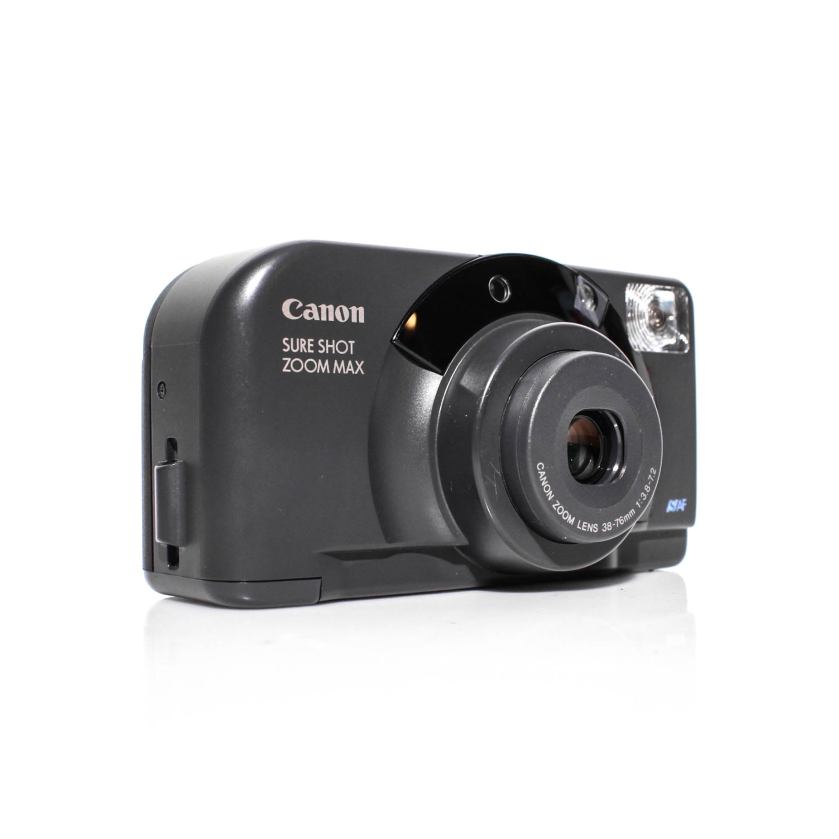
At some point in my early twenties I decided that it was time for something more portable, something I could take anywhere. I bought a Canon Sure Shot Max, loaded in some negative film and took it along with my T70 on a holiday to North Eastern USA. It was a great camera for group photos and carrying around a city when I would otherwise have felt a bit uncomfortable carrying the T70 around.

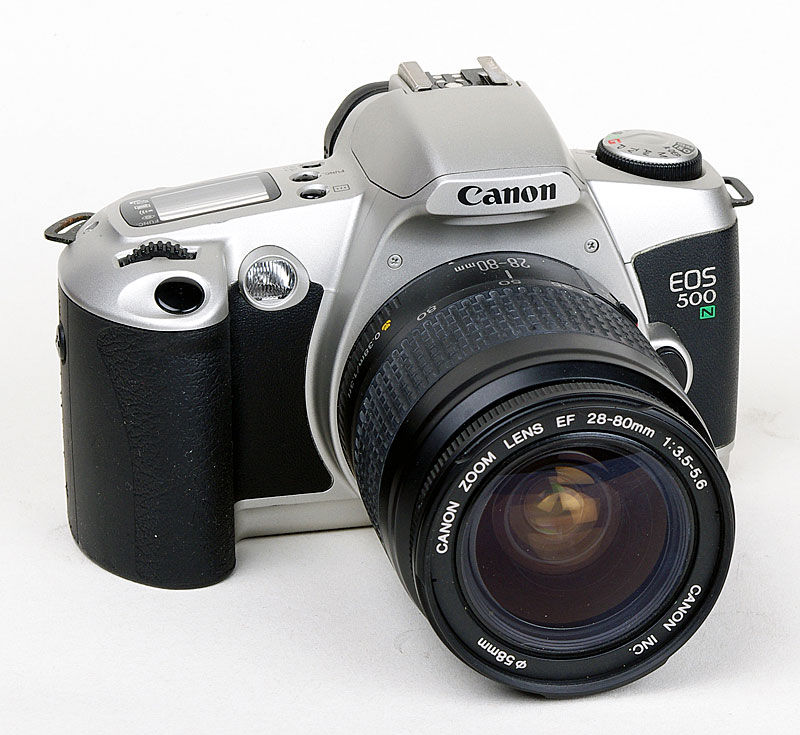
About ten years after I bought my Canon T70 an opportunity came up for a good deal on a Canon EOS camera, along with a couple of kit lenses. Being a new system there was no point in buying an EOS body as I couldn’t use my FD lenses on it, even if my lens collection numbered only two by this point. The kit that I bought was the Canon EOS 500N with 28-80mm and 80-200mm zoom lenses. It was all quite basic, but what really excited me is that it would be the first camera that I owned that would have the now standard PASM (program, aperture priority, shutter priority, manual) modes, and would therefore finally match the Canon A-1 in functionality. This was a good upgrade on the T70, and I confess I didn’t really miss the older SLR after I made the switch. For me the 500N was a great camera at that time – it had the PASM modes of the A-1, the auto-winding of the T70, a built in flash, a couple of useful lenses, and a few other new features such as autofocus. This was the camera that would enable seamless transition to Canon DSLRs down the line. I also bought it just before the first affordable digital cameras started to appear. The sun was setting on my 35mm film camera days.

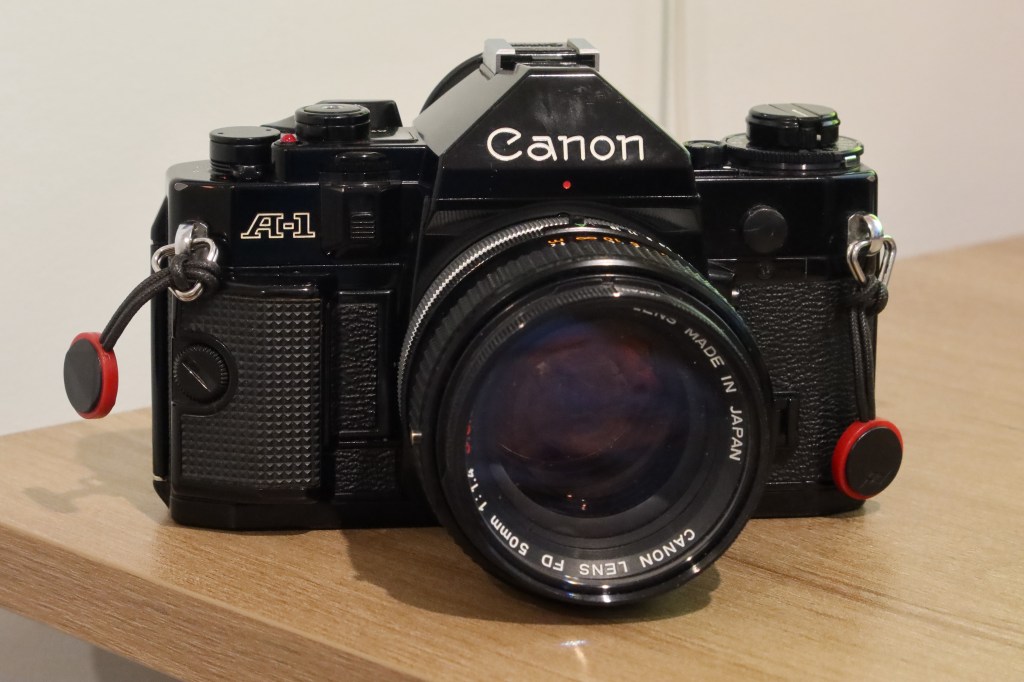
Canon A-1. Best… camera… ever! (IMHO)

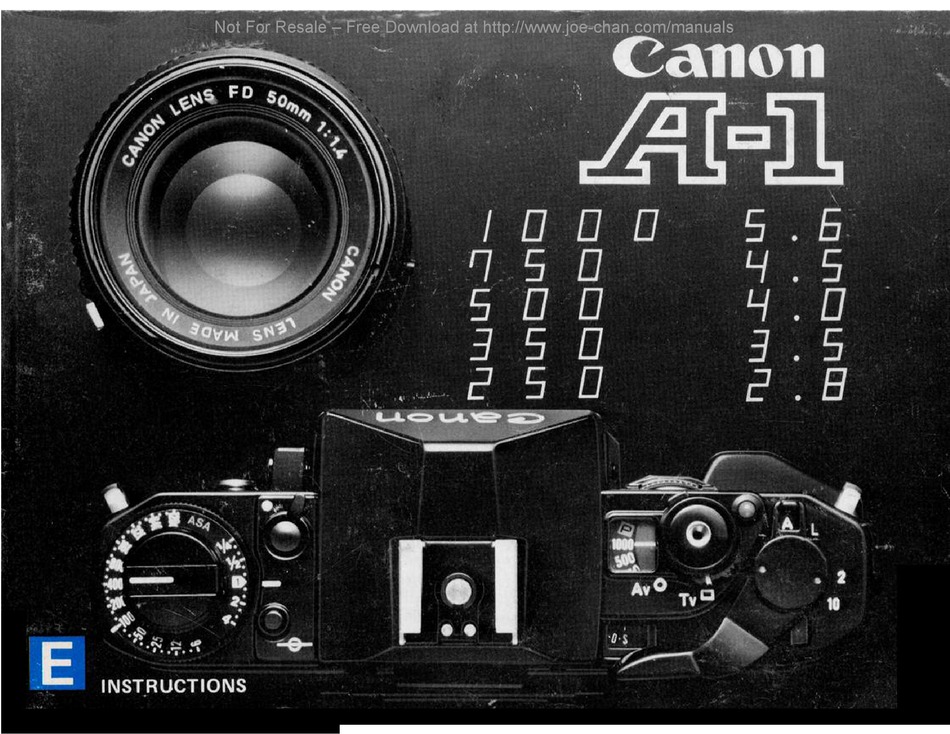
Straight up, this is my favourite camera. Not only this model, but this particular one. It was my Dad’s and he gave it to me about 20 years ago now. It has been sitting in storage, but when I found it I tested it, gave it a clean, applied some oil to the mirror mechanism, and here we are.

My Dad bought it with three lenses I think – I’d have to ask him to be sure. The 50mm f1.4 is now the one always attached as I like to shoot with a standard prime on this camera. When I was a kid it usually had the 28mm f2.8 mounted as that seemed to work best for the sorts of photos that my Dad took, which were mainly travel (landscape, cityscape, and the odd family group shot). He also occasionally used a 80-200mm f4 tele-zoom lens. All three lenses have the silver breach lock ring, and are original Canon FD. I have all three lenses now, along with a Canon 2x teleconverter and a Canon Speedlite 199A bounce flash that he also bought.

So here it is. My favourite camera… specifically this one. It has immense sentimental value to me, as I remember my Dad using it when I was a kid. It’s wonderful to use and has all the basic functionality – I believe it was the first SLR to introduce the now standard PASM modes. Too easy.

Read more here:

Wikipedia – Canon A-1
Canon Camera Museum – A-1